Import a candidate from LinkedIn
The Nextal LinkedIn Profile Scraper Chrome extension lets you import LinkedIn profiles directly into your Nextal platform. There are two methods available: the fast overlay button, or the extension side panel.
Method 1: One-click overlay (recommended)
This is the fastest method. A single click is all it takes to import a LinkedIn profile.
Step 1: Go to a LinkedIn profile
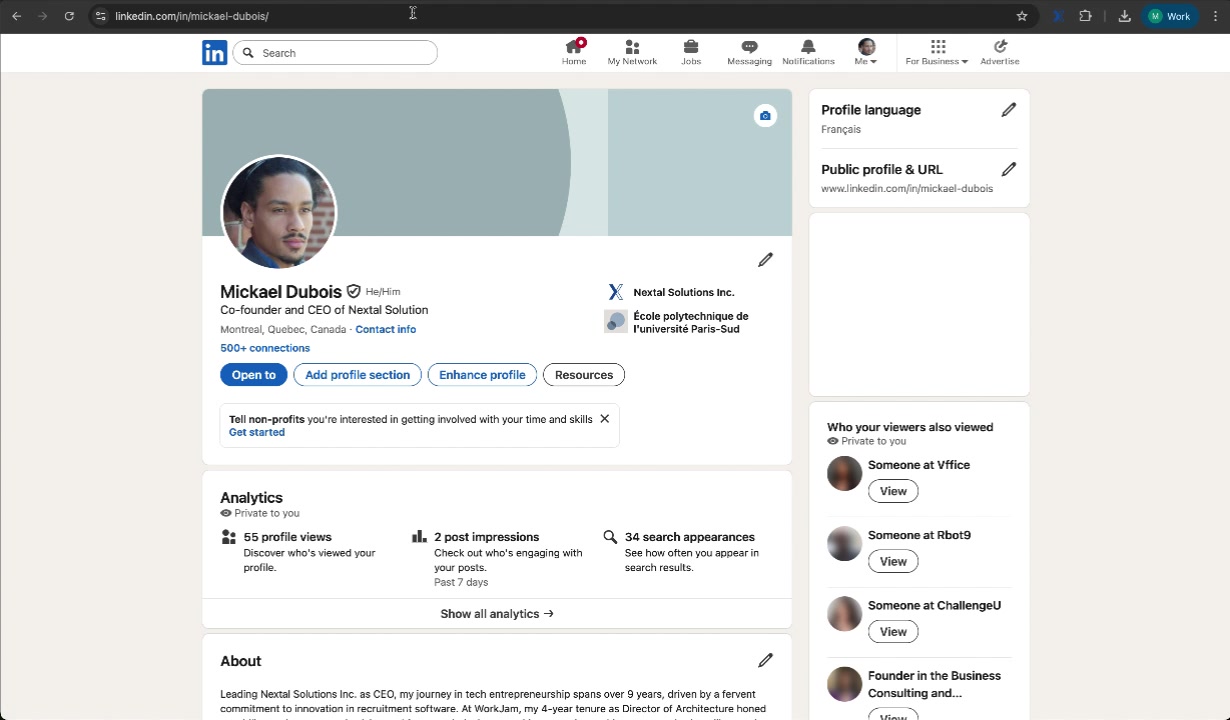
Navigate to the LinkedIn profile of the candidate you want to import. The extension works on any LinkedIn profile page.
Step 2: Open the Nextal extension
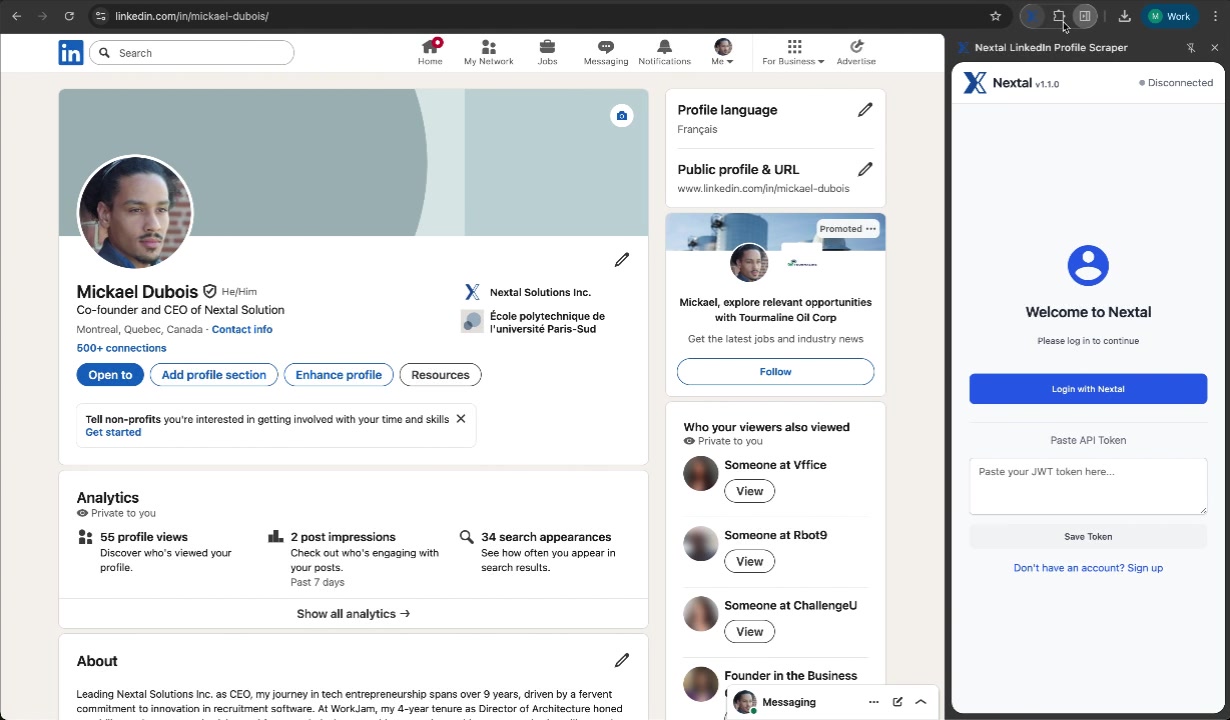
Click the Nextal extension icon in the Chrome toolbar. A side panel opens with the connection interface showing “Welcome to Nextal” and the login options.
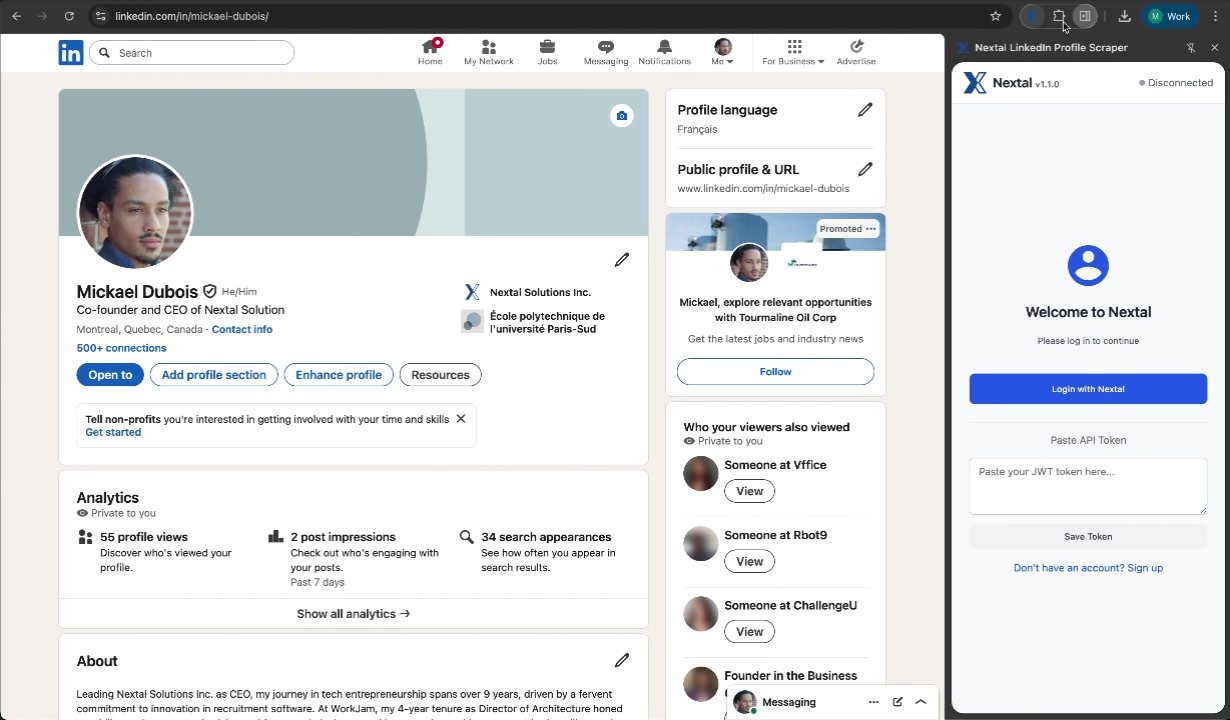
You have two options to connect:
- “Login with Nextal” — connect via your Nextal account (recommended)
- “Paste API Token” — for advanced users who prefer a JWT token
Step 3: Log in to your Nextal account
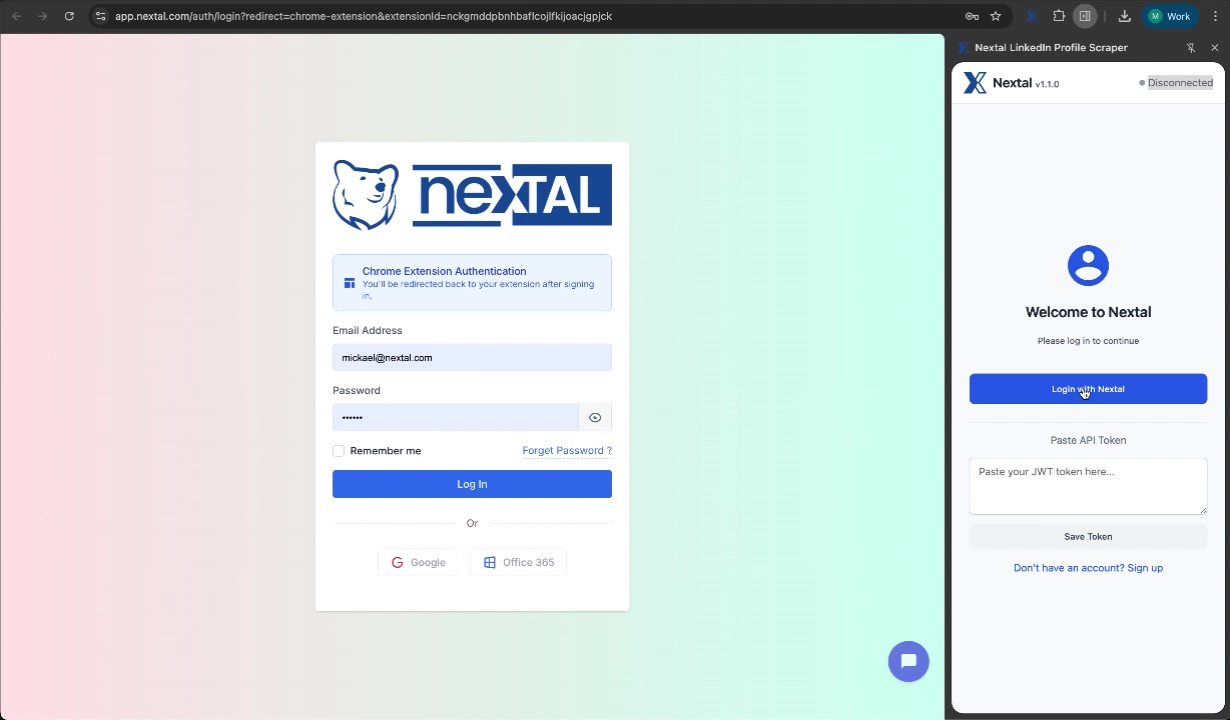
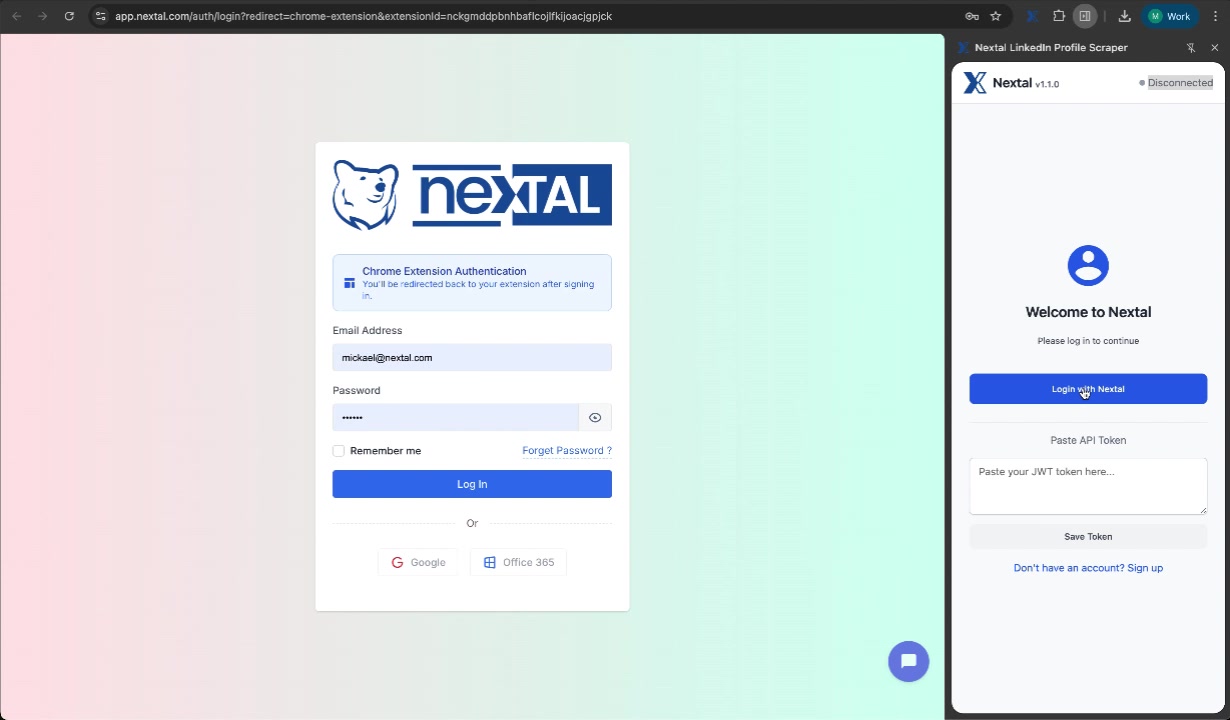
Click “Login with Nextal” and you will be redirected to the secure authentication page. Enter your usual credentials. You can also log in via Google or Office 365 if those options are configured for your account.
Step 4: Authentication confirmed
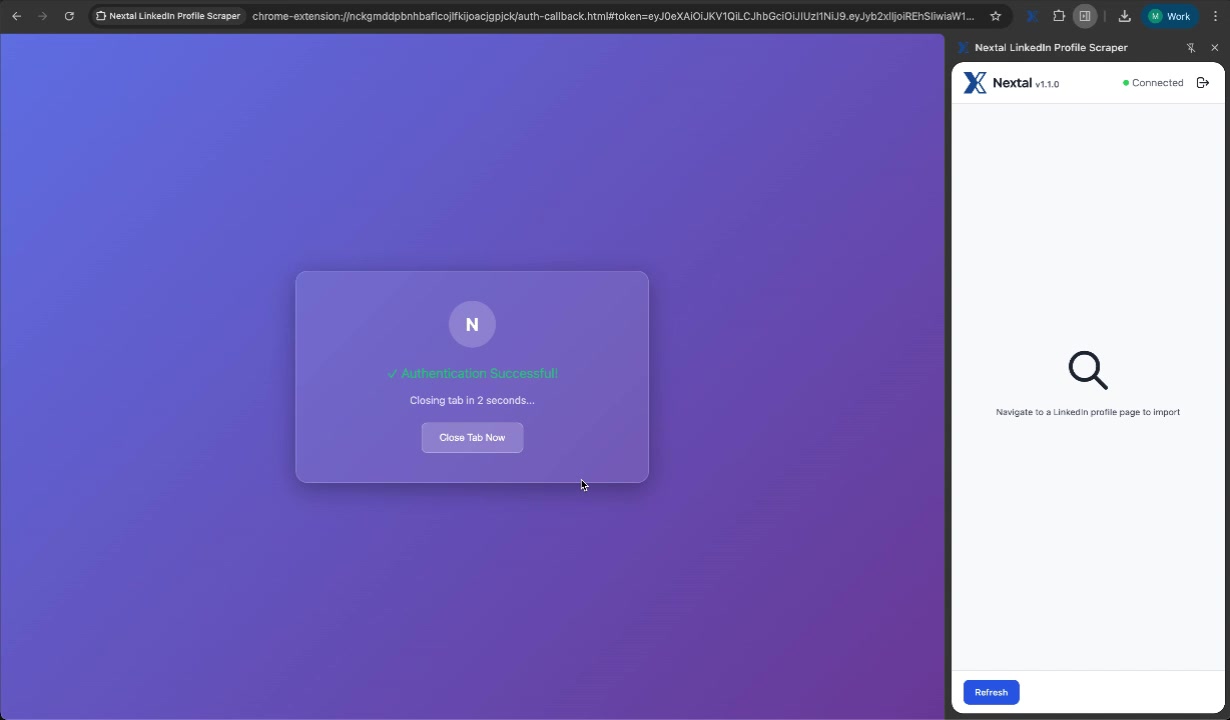
Once logged in, you will see a confirmation message. The tab will close automatically after a few seconds.
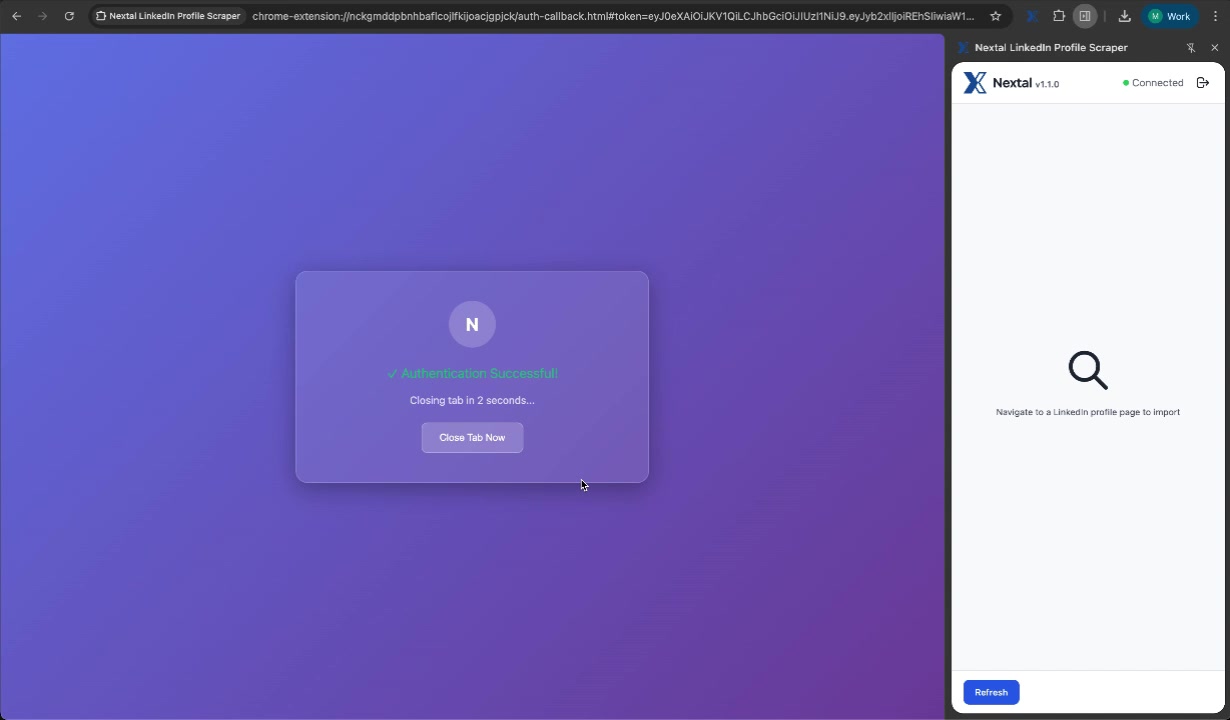
The extension indicator turns green — “Connected”.
Step 5: Profile loading
Return to the LinkedIn profile page. The extension automatically detects the profile and starts extracting information.
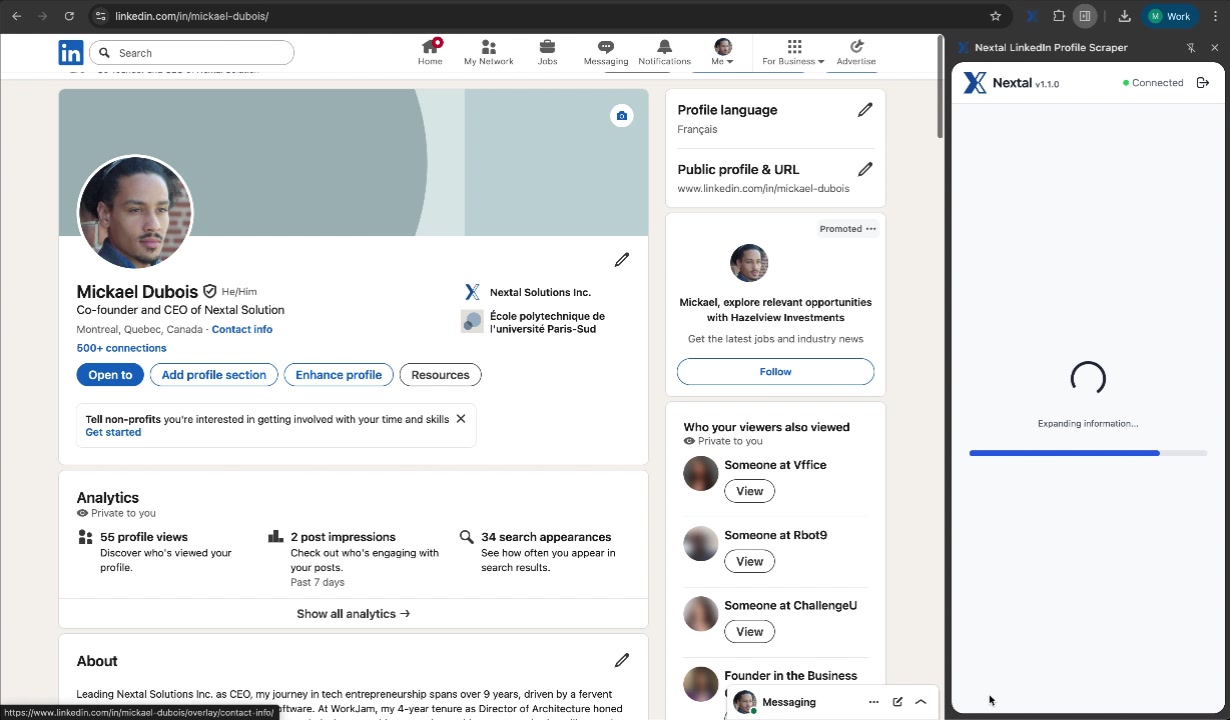
The extension automatically retrieves:
- Personal information (name, title, location)
- Full work experience
- Education
- Skills
- The CV as a PDF (if available)
Step 6: Profile imported successfully
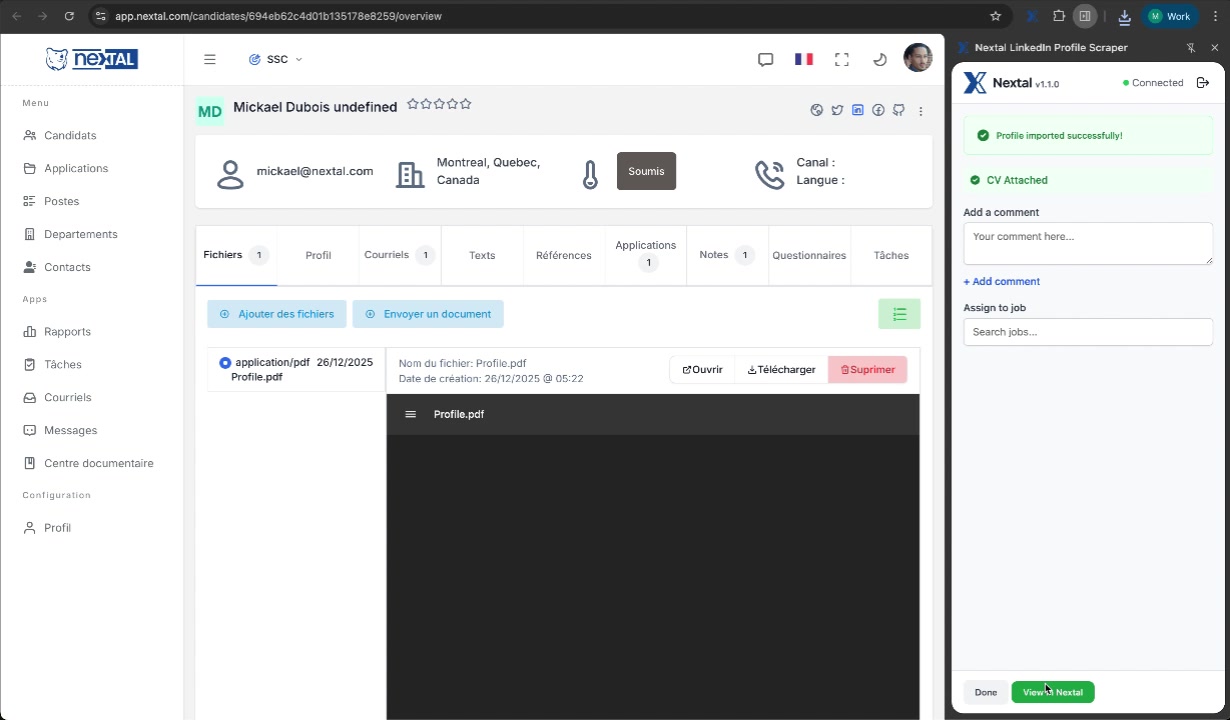
Once the import is complete, you will see the success confirmations.
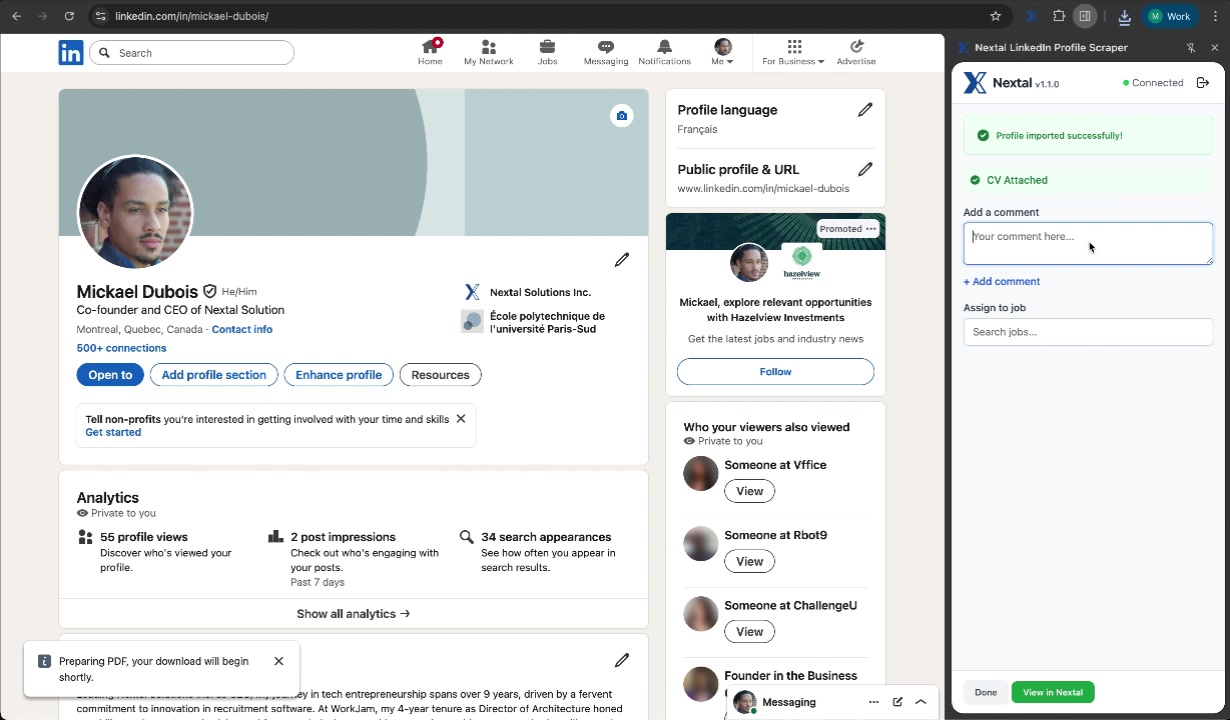
At this point you can:
- Add a comment — note your first impressions or contextual information
- Assign to a job — search for and select an open position
Step 7: Add a comment (optional)
Take the opportunity to add a personalised note that will be visible in the candidate’s profile.
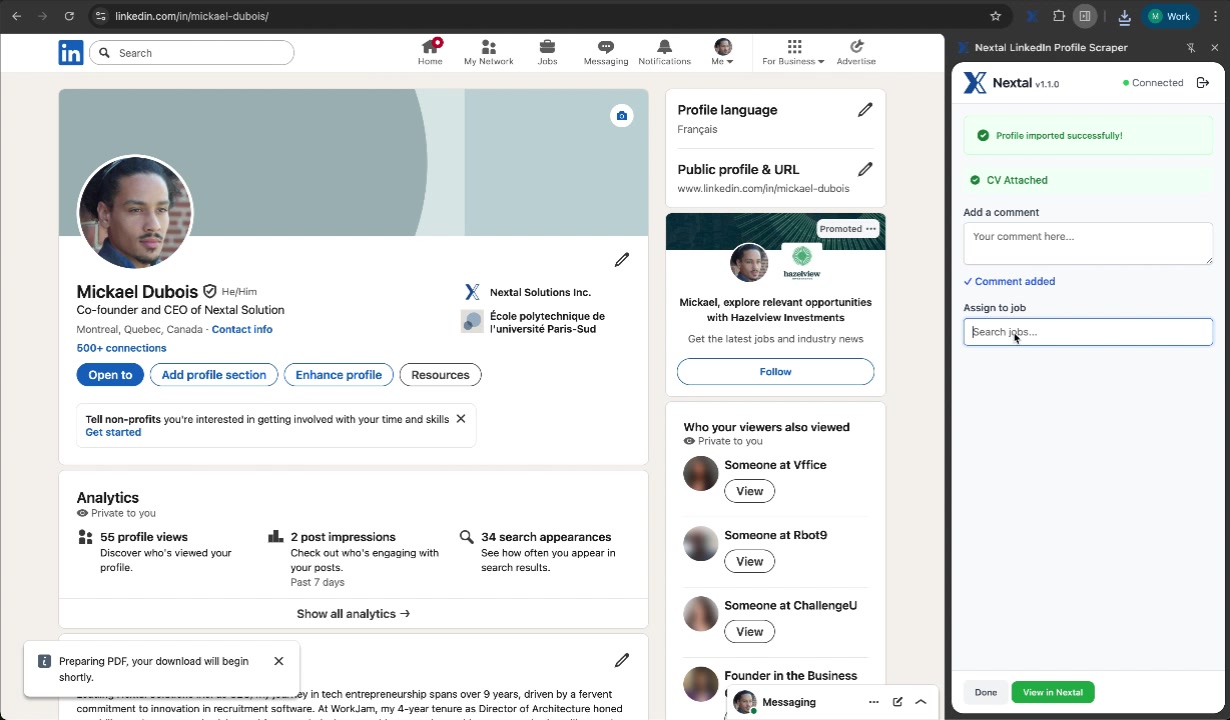
The comment is confirmed by the mention “Comment added”.
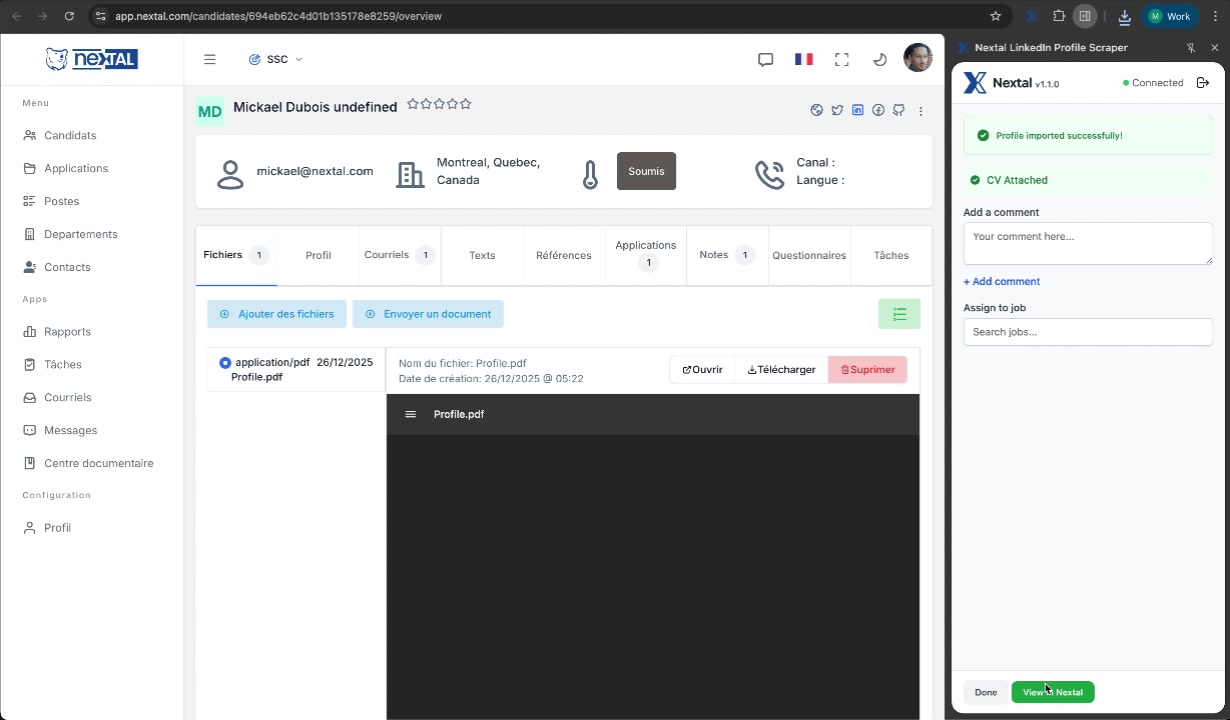
Step 8: View the candidate in Nextal
Click “View in Nextal” to open the candidate’s profile directly in your platform. All information has been imported, including the CV in PDF format.
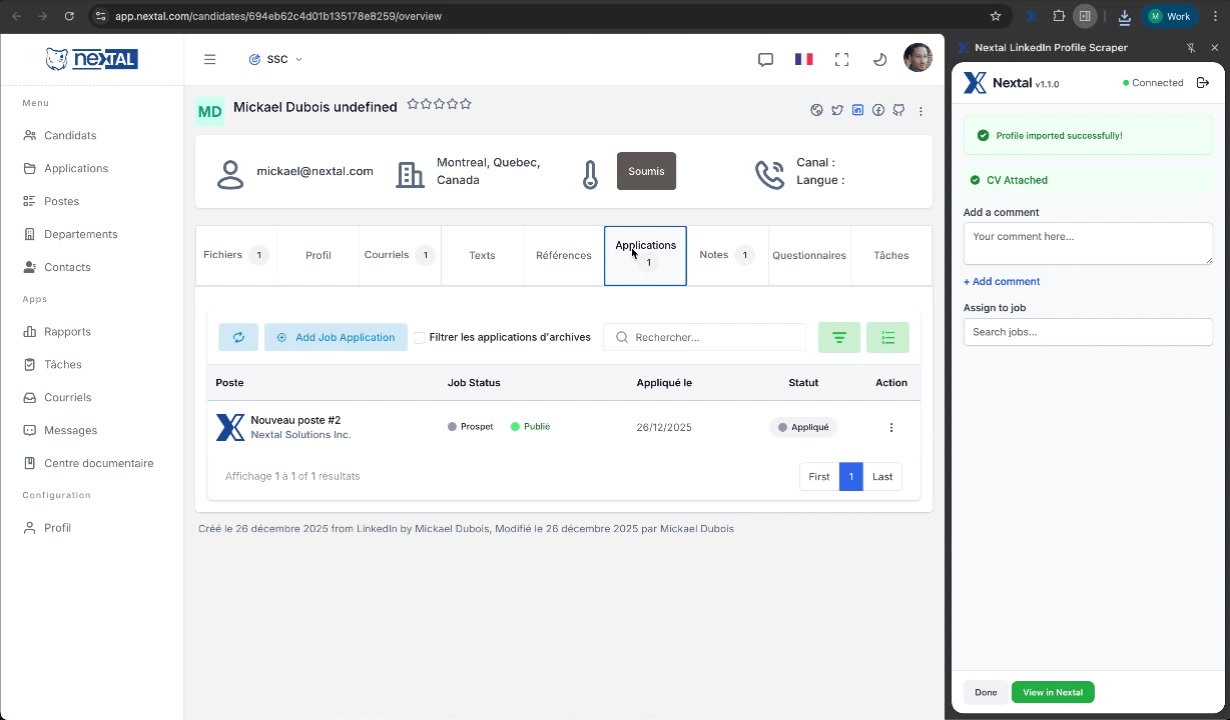
Step 9: Assign the candidate to a job
In the “Applications” tab, you will find the position to which the candidate was assigned along with their tracking status. The candidate is automatically associated with the selected position with the status “Prospect”.
Method 2: Via the side panel
This method offers more options, including the ability to add a comment and assign the candidate directly to a position during the import.
Step 1: Click the Nextal overlay button
When you visit a LinkedIn profile, you will automatically see the Nextal button (blue X logo) appear on the left side of the page. This floating button is always visible and accessible. Click it to open the extension.

Step 2: Open the extension panel
On a LinkedIn profile, click the Nextal extension icon in the Chrome toolbar (top right). The side panel opens.
Step 3: Log in (first use)
If this is your first connection, click “Login with Nextal” and enter your credentials.
Step 4: Authentication confirmed
After logging in, you will see the message “Authentication Successful!”. The extension indicator turns green — “Connected”.
Step 5: Enrich the import
Once the profile is imported, you can directly from the extension:
- Add a comment — note your first impressions about the candidate
- Assign to a job — search for and select an open position
- Assign labels — search for an existing label or create a new one
You can then:
- Click “Done” to close and continue browsing
- Click “View in Nextal” to open the candidate’s profile directly
Duplicate detection
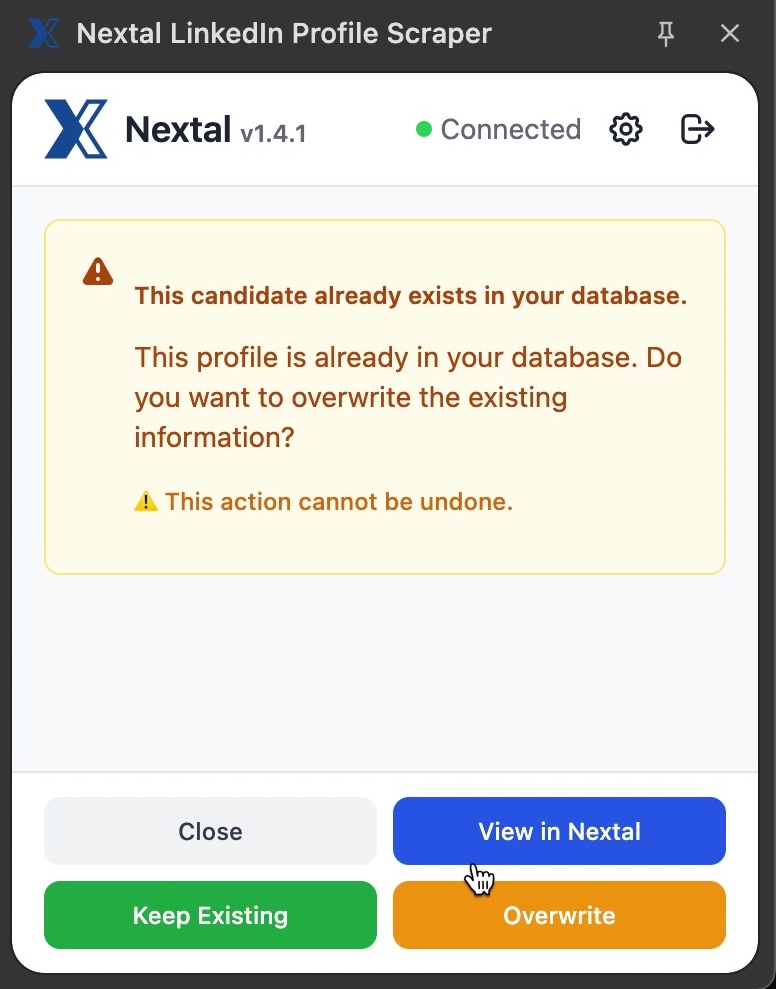
If the candidate already exists in your Nextal database, the extension notifies you and offers three options:
- “View in Nextal” — view the existing candidate profile
- “Keep Existing” — keep the current information without changes
- “Overwrite” — replace with the new LinkedIn information