

Indeed Apply
Indeed Apply lets candidates apply to your jobs without leaving Indeed: they click Apply with Indeed on the listing, fill in Indeed’s form (profile, resume, screening questions), and the application is created automatically in Nextal, on the right job, with the resume attached.
Indeed Apply is part of Nextal’s Indeed integration: as soon as the integration is enabled, every job you post to Indeed is sent with Indeed Apply. There is no extra step and no separate option to switch on.
What it does
- Adds the Apply with Indeed button to each of your Indeed listings, instead of a link to your career portal.
- Creates the application in Nextal, on the matching job, with the source Indeed.
- Creates the candidate when they are new, or attaches the application to the existing candidate when the email address already matches a profile.
- Attaches the resume the candidate uploaded on Indeed and parses it to fill in the profile.
- Asks the questions of the survey linked to the job at apply time and stores the answers with the application.
Prerequisites
Before you begin, make sure you have:
- An Indeed employer account in your company’s name.
- Your Indeed Company Name, exactly as registered with Indeed.
- Your Indeed Key, available in your Indeed employer dashboard.
- A Nextal user with the Administration → Integrations permission to enable the integration, and recruiters with job edit rights to publish jobs.
- Jobs whose address includes a city, province/state and country. Indeed requires a complete location; a job missing any of the three is not sent.
- (Optional) A survey template of type Candidate if you want to ask screening questions on Indeed. See Survey templates.
Enable Indeed Apply, step by step
Step 1 — Enable the Indeed integration
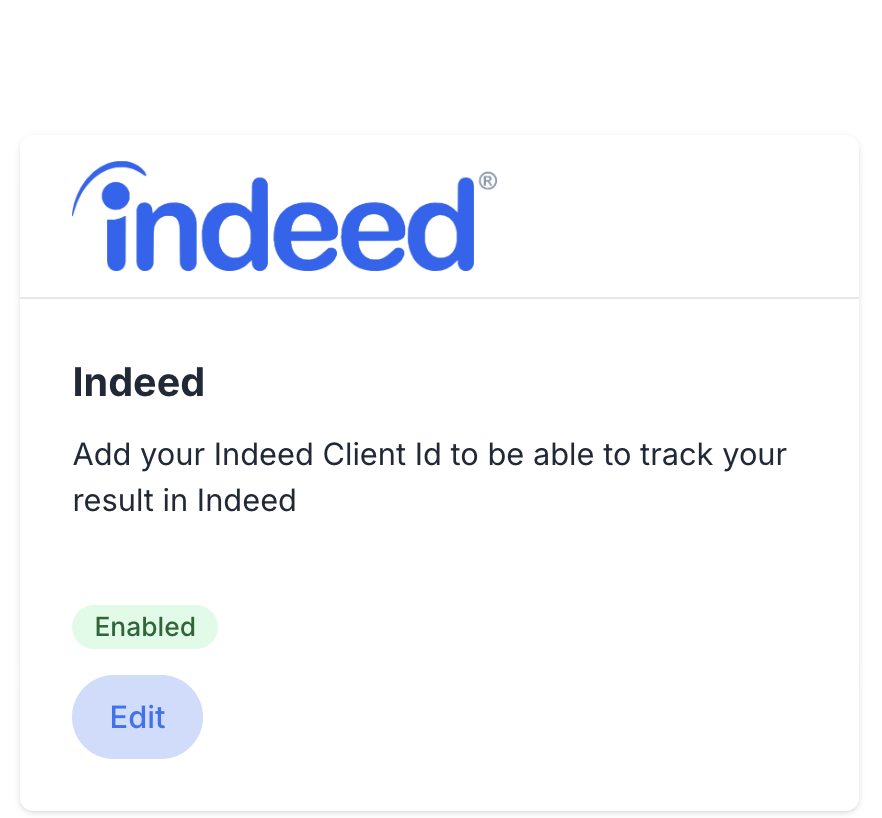
- Go to Administration → Integrations and find the Indeed card.
- Click Edit to open the configuration panel.
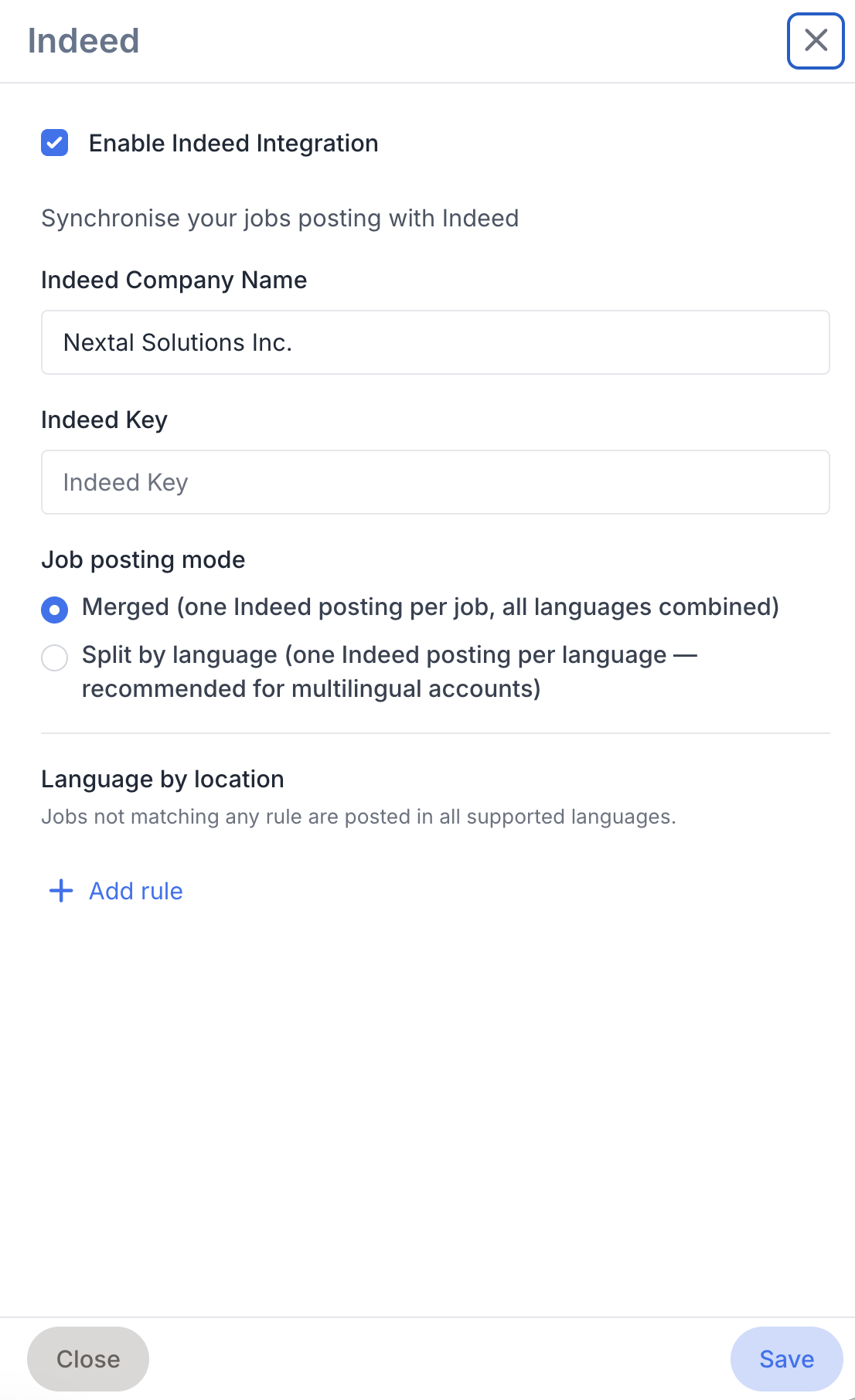
- Check Enable Indeed Integration.
- Enter your Indeed Company Name.
- Enter your Indeed Key.
- Choose the Job posting mode (Merged or Split by language). See Indeed for the details of each mode and of the Language by location rules.
- Click Save. The Indeed card switches to Enabled.
Step 2 — Publish a job to Indeed
Each job chooses its own publishing sites. For a job to appear on Indeed with Indeed Apply:
- Open the job and go to the Detail tab.
- In the Publishing Sites field, make sure Indeed is checked.
- Check that the job’s address has a city, a province/state and a country.
- Click Edit in the job card and pick Published in the Publication field, then Save.

For everything about the Published toggle and publishing sites, see Publishing and syndication.
Step 3 — (Optional) Add screening questions
When a job has a survey attached, Indeed asks its questions to the candidate directly in the Indeed Apply form, and the answers are stored with the application in Nextal.
- Create a survey template of type Candidate under Administration → Templates → Survey templates (see Survey template questions).
- On the job’s Detail tab, pick that survey in the Survey field.
Questions and their answer choices are sent to Indeed in each language your organization supports.

Step 4 — Check on Indeed
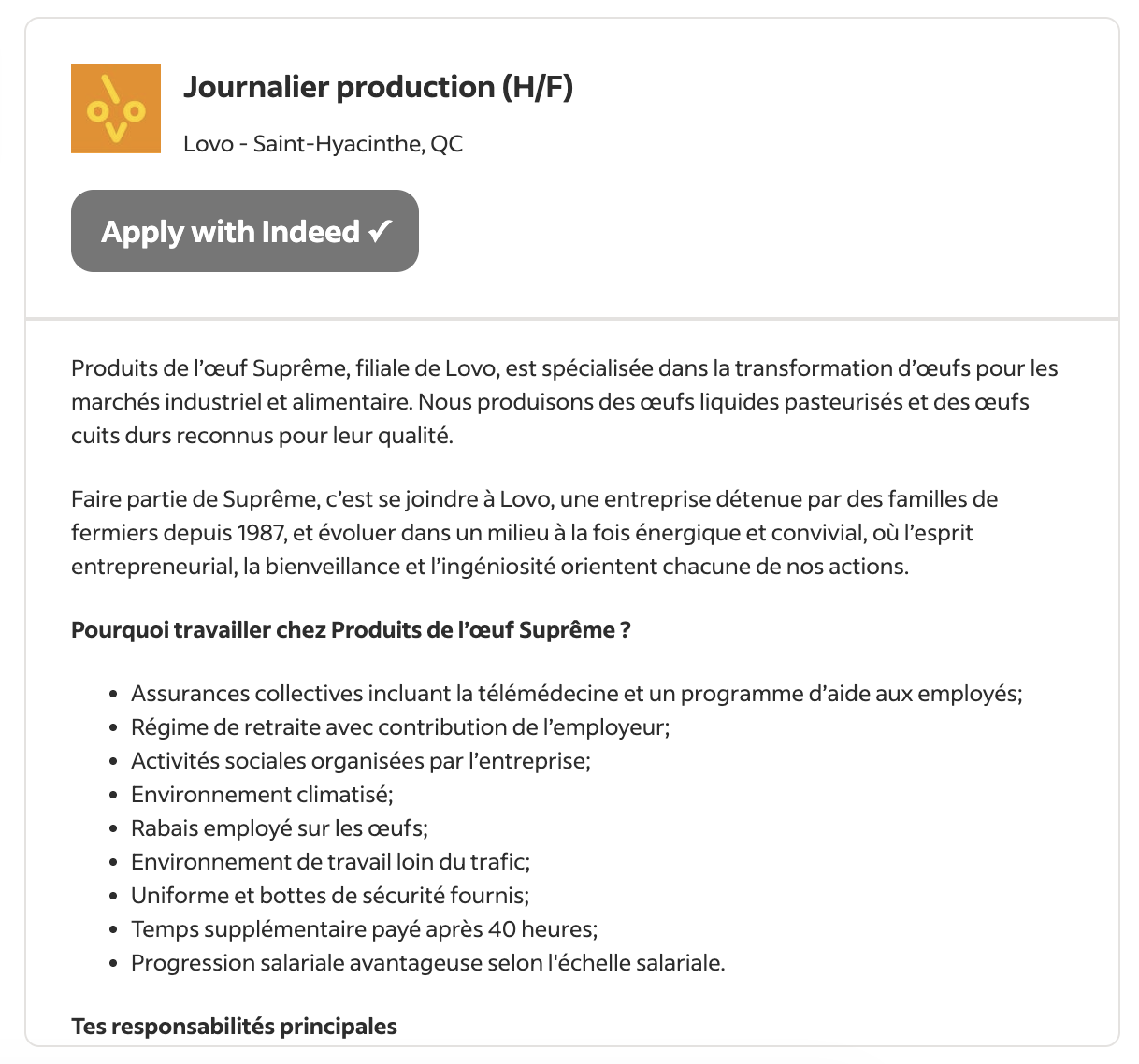
Indeed re-reads Nextal’s job feed at regular intervals; allow up to 6 hours for a new job — or a change — to show up. Once the listing is live, it shows the Apply with Indeed button instead of a link to your career portal.
Key settings
| Setting | Where | Description |
|---|---|---|
| Enable Indeed Integration | Administration → Integrations → Indeed | Master switch. When checked, your jobs are sent to Indeed with Indeed Apply. When unchecked, no jobs are sent at all. |
| Indeed Company Name | Administration → Integrations → Indeed | The name your listings appear under on Indeed. Must match your Indeed employer account exactly. |
| Indeed Key | Administration → Integrations → Indeed | Your Indeed key, used to tie your listings to your employer account and track results. |
| Job posting mode and Language by location | Administration → Integrations → Indeed | Control how, and in which languages, multilingual jobs are sent. See Indeed. |
| Publishing Sites | Job → Detail | Indeed must be checked for the job to be sent to Indeed. |
| Survey | Job → Detail | Candidate-type survey whose questions are asked in the Indeed Apply form. Optional. |
What to expect once Indeed Apply is enabled
- The candidate applies on Indeed. The Indeed Apply form reuses their Indeed profile, asks for their resume and asks the job’s survey questions, if any.
- The application shows up in Nextal within moments, in the job’s applicant list and on the candidate’s profile, with the source Indeed (see Applications tab). It enters the first step of the job’s workflow.
- The candidate is created or recognized. If the email address already matches a profile in Nextal, the application is attached to that profile; otherwise a new candidate is created. A candidate who already applied to the same job is not duplicated.
- The resume is attached and parsed. The file the candidate sent is added to the profile (see Files and resume) and its content is extracted to fill in the profile.
- Screening answers are kept with the application, just like a survey filled in on your career portal (see Surveys and feedback).
- Your automations apply as usual: acknowledgement emails, AI scoring, recruiter notifications — everything that fires when an application comes in.
Opting out of Indeed Apply, and re-enabling it
Nextal turns Indeed Apply on automatically for every organization whose Indeed integration is enabled. There is no separate Indeed Apply switch: what you enable or disable is the Indeed integration itself.
To opt out
- For the whole organization: under Administration → Integrations → Indeed, uncheck Enable Indeed Integration and click Save. No more jobs are sent to Indeed; listings already online drop off when they expire.
- For a single job: on the job, uncheck Indeed in Publishing Sites. The job is removed from the feed sent to Indeed at the next sync cycle; other jobs are unaffected.
To re-enable Indeed Apply after opting out
- Go to Administration → Integrations and click Edit on the Indeed card.
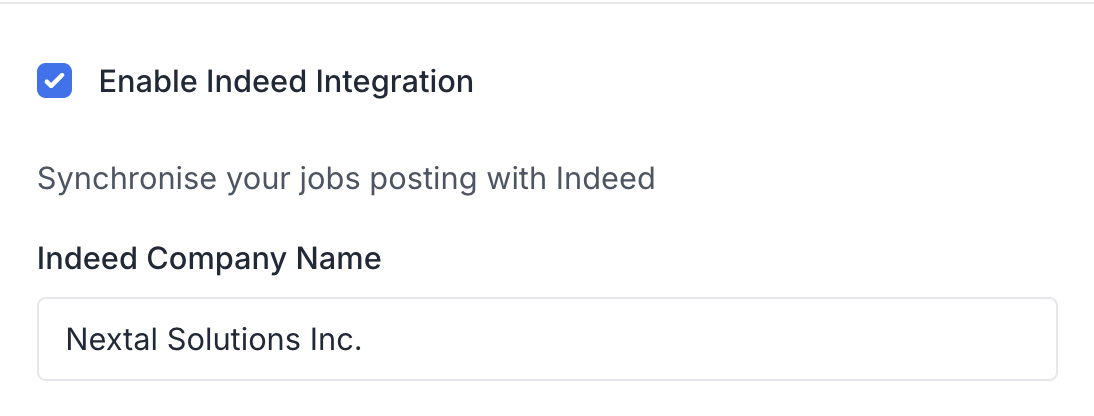
- Check Enable Indeed Integration.
- Check that the Indeed Company Name and Indeed Key are still filled in — they are kept when you disable the integration.
- Click Save.
- On each job you want to post, check that Indeed is selected in Publishing Sites and that the job is Published.
Your jobs are sent back to Indeed with Indeed Apply the next time Indeed reads the feed, usually within 6 hours.
Troubleshooting
- The listing is on Indeed but has no Apply with Indeed button. Check that the Indeed integration is enabled in Nextal and that the job was sent by Nextal (not created directly in your Indeed account). Changes take up to 6 hours to be picked up by Indeed.
- The job does not appear on Indeed at all. Check, in order: the integration is enabled; the job is Published; Indeed is checked in its Publishing Sites; its address has a city, province/state and country; the Indeed Company Name matches your employer account exactly; if you use Language by location rules, the job has content in at least one allowed language.
- Screening questions do not show on Indeed. Make sure a Candidate-type survey is selected in the job’s Survey field and that it has at least one question.
- An Indeed application does not show up in Nextal. Search the candidate by email: if they already existed, the application was attached to their profile. If they had already applied to that job, no second application is created.