

Scheduled tasks
Keep follow-up reminders on a candidate — a call, an email to send or a to-do — with a due date and an owner; overdue tasks stand out.
What it does
Date-bound reminders tied to a candidate. “Follow up on Friday”, “Call back after the holidays”, “Confirm references by the 15th”. Each task has a type, a due date, an owner and an open / completed state. The tab is a list on the left and the selected task’s detail on the right; all your open tasks, across every record, gather in the My tasks app.
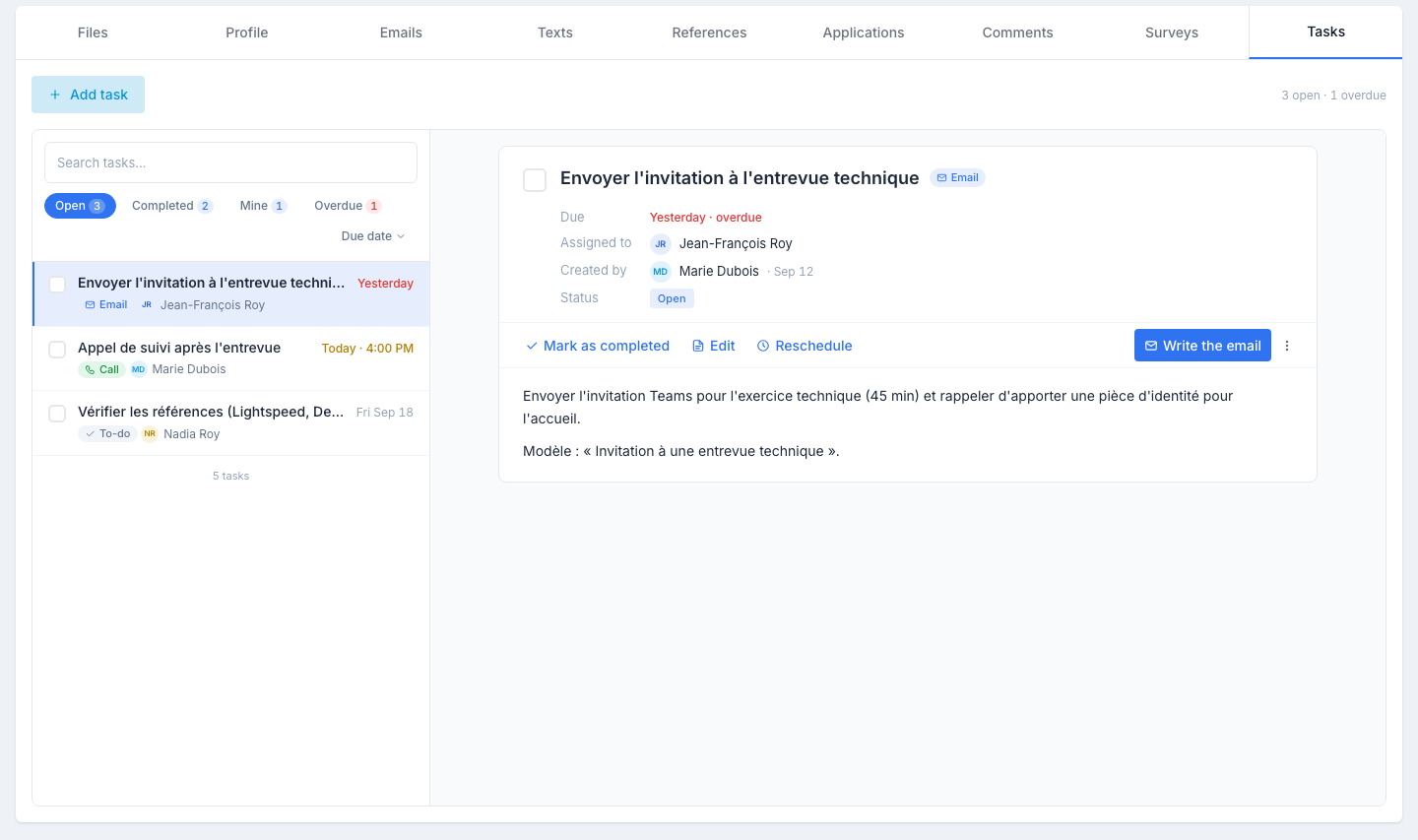
The list
One row per task: a checkbox, the title, the due date (red when past, amber when today), the type — To-do, Call or Email — and the owner.
Above it: a search, the Open · Completed · Mine · Overdue chips with their counts, and the Due date sort (soonest first; click to flip). The tab opens on the open tasks.
A task’s detail
Click a row. On the right: the title and type, then Due, Assigned to, Created by and Status, the description, and a row of actions:
- Mark as completed — ticking the checkbox on the row does the same. The task moves under the Completed chip, struck through; Reopen brings it back.
- Edit — reopens the side panel.
- Reschedule — a new date and time, without going through the panel.
- Write the email — on an Email task, opens the candidate’s send panel, as from the Emails tab.
- On a Call task, the candidate’s phone number is shown instead.
- ⋯ → Delete — with a confirmation.
Creating or editing a task
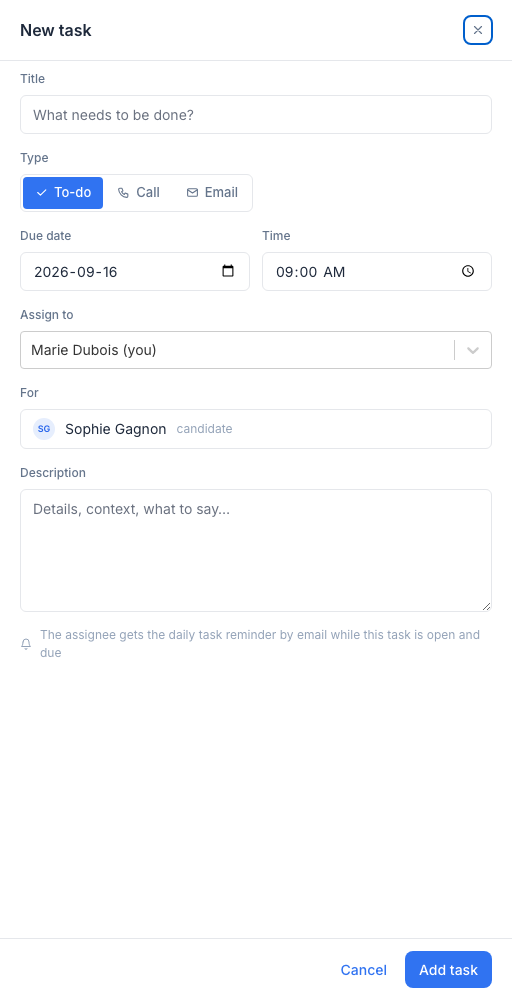
Click Add task. The panel asks for:
- Title — short and concrete (“Send 2-week follow-up”).
- Type — To-do, Call or Email. The type changes the action offered in the detail.
- Due date and Time.
- Assign to — a colleague; you by default.
- For — the candidate, already filled in.
- Description — free text, optional.
Nothing is sent when you save. The assignee sees the task in their daily reminder email on the morning it comes due — see below.
Reminders and notifications
The assignee receives:
- An email reminder on the morning the task comes due — see below.
- The task in the My tasks app, grouped under Overdue, Today, This week or Later.
- Their overdue tasks and those due today and tomorrow in the My tasks card of the dashboard.
The daily reminder email
Each morning, Nextal sends one email to each person who has tasks to do, and that email covers candidates, clients and jobs together. The same person could previously receive up to three, one per record type. If you used to get a separate email for your client tasks, it hasn’t gone away: it is now a section of this single email.
What it contains:
- One line per task, with its title and its due date. Two tasks on the same candidate produce two lines, not one.
- Overdue tasks are flagged as such, with the number of days they are late.
- One section per record type — Candidates, Clients, Jobs — and only the sections that have tasks appear. With no client tasks, there is no Clients section.
- Every line opens the matching record in Nextal. There is no direct link to a task itself: the email opens the candidate, client or job, and the task is on its Tasks tab.
- A link to the dashboard, whose My tasks card gathers your overdue tasks and those due today and tomorrow.
A few details worth knowing:
- A task is announced once. The email picks up tasks that are not complete, have not been reminded to you yet, and are due today or already past due — so a task created with a date already gone by does appear, flagged as late from the start. Once announced, it does not come back on the following mornings; the record and the dashboard are what keep it visible until it is completed.
- Nothing due means no email. There is no “all clear” message.
- The email follows the language on your user profile, French or English. Any other language — or no language set — gives French.
- There is no switch for this reminder. Notification preferences cover other emails, not this one: it goes to anyone who has tasks assigned to them.
Tips
- Use tasks for sourcing follow-ups. “Re-contact in 6 months” tasks turn cold leads into pipelined candidates.
- Assign to the right person. If the candidate has been transferred to a teammate, reassign open tasks too.
- Pick the right type. An Email task opens the send panel straight away; a Call task puts the number in front of you.