

My tasks
Your open tasks across candidates, contacts, clients and jobs — as a list grouped Overdue · Today · This week · Later, or on a month or week calendar. Complete, reschedule or reassign them without opening each record, or look at one colleague’s list.
What it does
Tasks live on records — a candidate’s, a contact’s, a client’s or a job’s Tasks tab. The My tasks app (route /apps/tasks) gathers the open ones assigned to you, whatever record they are on, with the record each task is for, and shows them two ways: as a list, sorted by due date and grouped by urgency — the list to work through in the morning — or on a calendar, by month or by week — the view by date. The List | Calendar toggle, to the right of the chips, switches between them; the chips, the search and the scope apply to both.
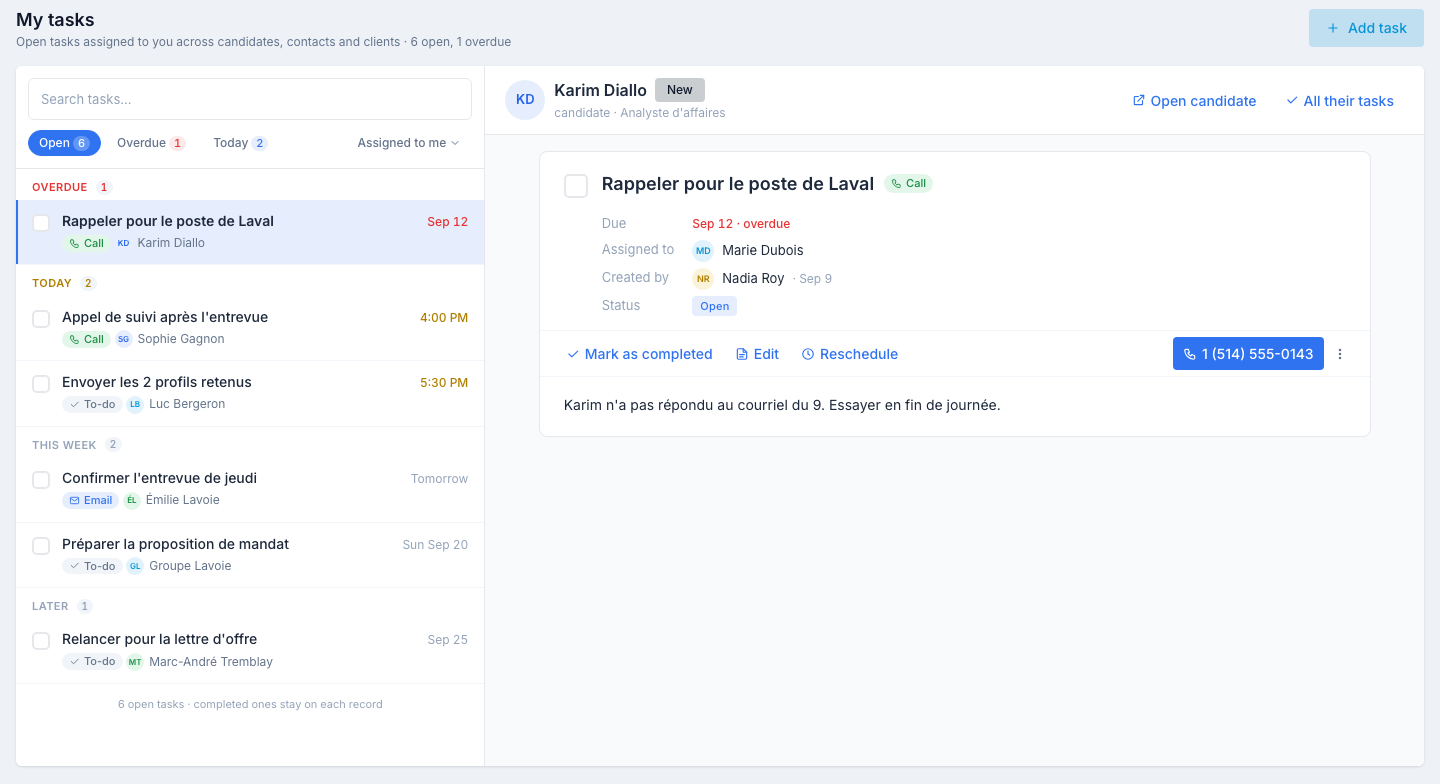
The list
One row per task: a checkbox, the title, the due date or time (red when overdue, amber when today), the type — To-do, Call or Email — and the record the task is for, with its avatar: a person, a client, or a job (a briefcase).
The rows are grouped, each group with its count:
| Group | Contains |
|---|---|
| Overdue | Tasks due before today. |
| Today | Tasks due today. |
| This week | Tasks due tomorrow through the next seven days. |
| Later | Everything further out. |
Above the rows:
- A search across titles, descriptions and the record’s name.
- The Open · Overdue · Today chips, with their counts.
- The scope — Assigned to me by default; see below.
- The List | Calendar toggle — see the Calendar view.
Under the rows, N open tasks · completed ones stay on each record: this app lists open tasks only. A task you complete leaves the list and stays, struck through, on its record’s Tasks tab.
The Calendar view
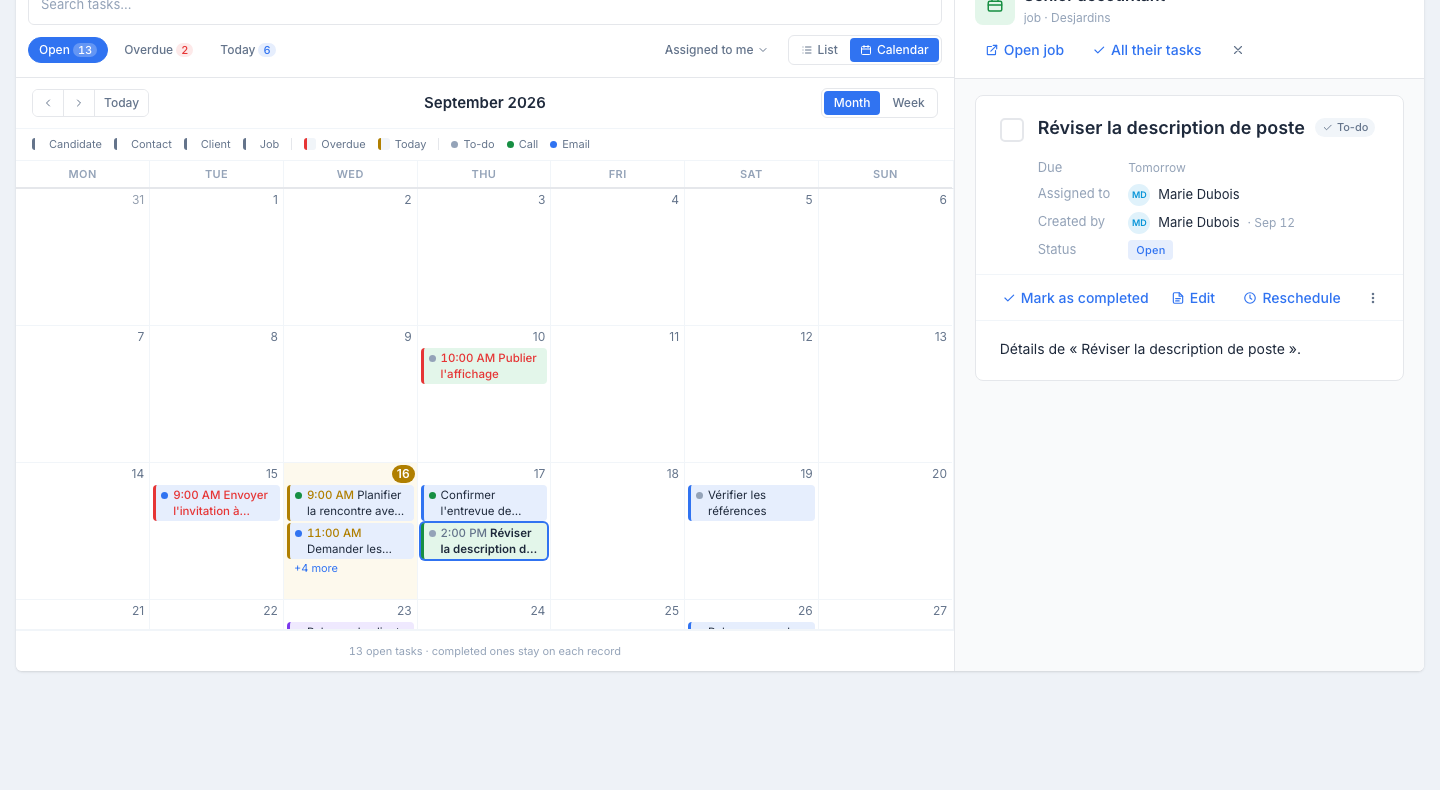
Click Calendar to the right of the chips. The same tasks — after the chips, the search and the scope — sit on their due dates.
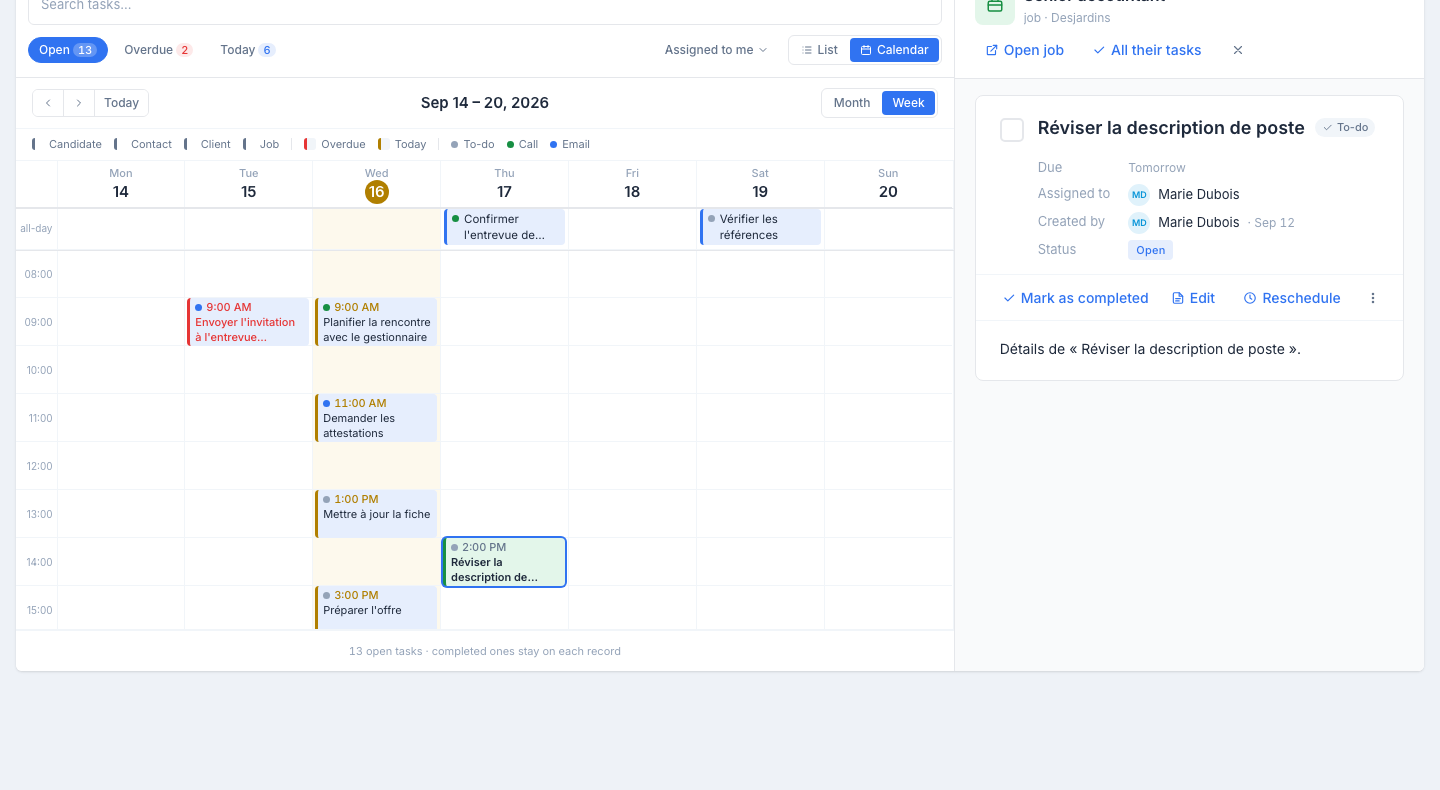
- Month or Week, chosen at the top right of the calendar; ‹ › and Today move between periods, the title says which one. The week runs Monday to Sunday and opens at 8 AM; tasks without a time sit in the all-day row at the top.
- Each task shows its time (when it has one) and its title, with a coloured dot for the type — grey To-do, green Call, blue Email. The background tint says which record it is on — candidate, contact, client or job — and the border flags urgency: red overdue, amber today.
- Click a task to open it on the right, exactly like a row of the list: same record strip, same actions. Completing, rescheduling, editing or deleting the task updates the calendar at once — a rescheduled task changes day, a completed one disappears.
- Add from here: hover a day (Month) or an hour (Week) — a + appears; it opens the New task panel with the due date already filled in (that day, 9 AM by default; or the day and hour you hovered). Clicking the cell’s background does the same. The record (For) is still yours to pick; the new task shows on the calendar, selected.
- Tasks cannot be dragged — use Reschedule.
- Need room? The × at the right of the record strip closes the detail pane: the calendar takes the full width. Clicking a task reopens it. The choice is remembered on this computer from one visit to the next — in List view the pane always stays open.
The choice is in the address (/apps/tasks?view=calendar): a bookmark or a link reopens the calendar directly.
One colleague’s tasks
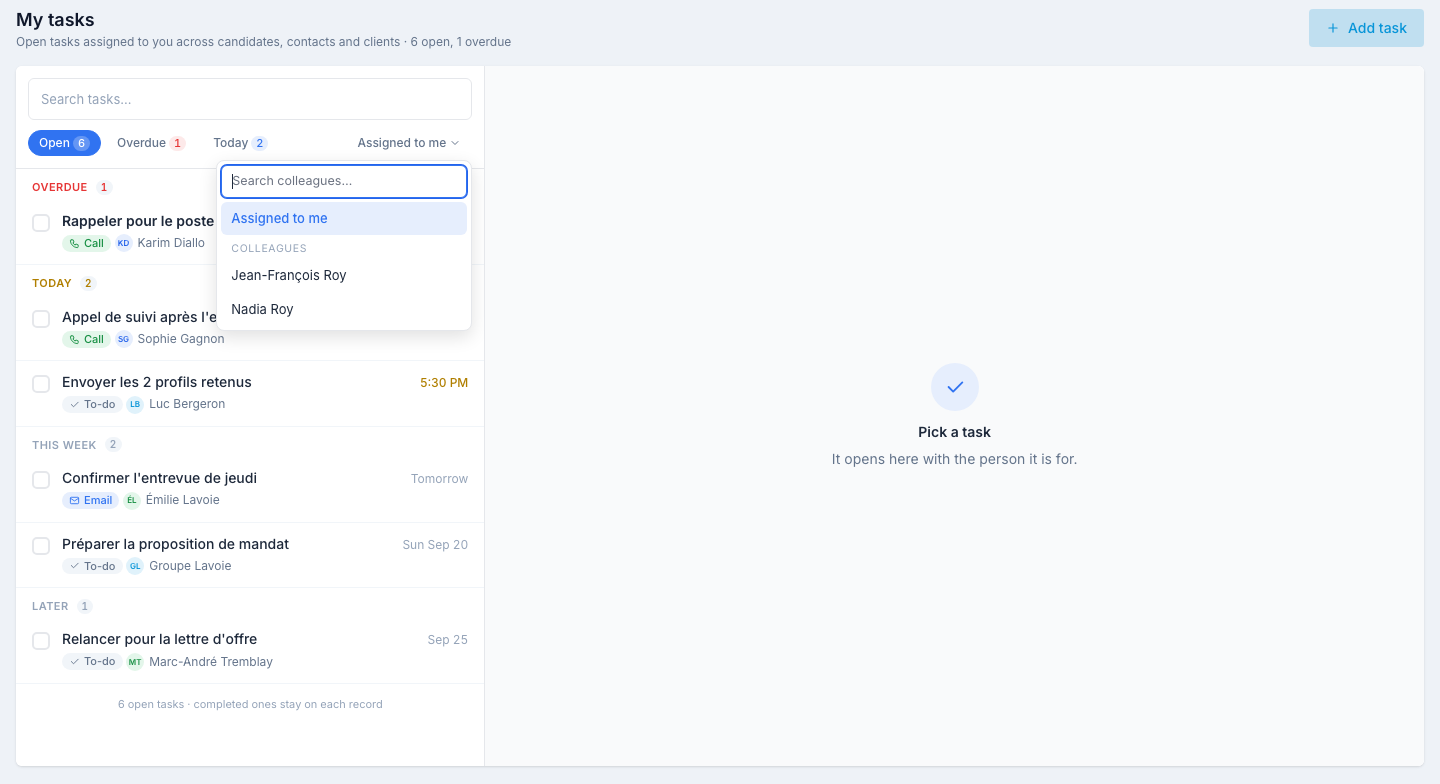
Click Assigned to me and pick a colleague — search by name. The list, the groups and the counts become theirs; the header reads Open tasks assigned to <name>. Pick Assigned to me to come back. The scope is one person at a time: there is no “everyone” view.
A task’s detail
Click a row. On the right:
- The record strip — what the task is for: a candidate with their status and the job they last applied to, a contact with their company, a client, or a job with its client. Open candidate / Open contact / Open client / Open job lands on the Tasks tab of the record. All their tasks narrows the list — and the calendar — to this record; a chip with its name appears above the rows; click it to show everyone again.
- The task — the title and type, then Due, Assigned to, Created by and Status, the description, and a row of actions:
- Mark as completed — ticking the checkbox on the row does the same. The task leaves this list; it stays on its record, under Completed.
- Edit — reopens the side panel (see below).
- Reschedule — a new date and time, without going through the panel. The task moves to the matching group.
- Write the email — on an Email task, opens the record’s send panel: the candidate’s, or the client’s / contact’s with its contact picker.
- On a Call task for a candidate or a contact, their phone number is shown instead. A task on a job offers neither: a job has nobody to reach.
- ⋯ → Delete — with a confirmation.
Adding a task from here
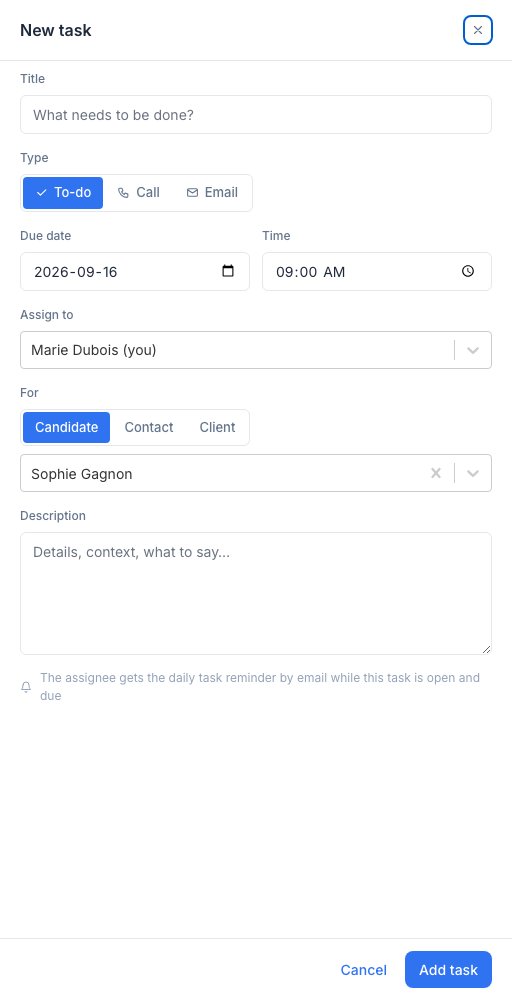
Click Add task in the header. The panel asks for:
- Title — short and concrete.
- Type — To-do, Call or Email.
- Due date and Time.
- Assign to — you by default, or a colleague.
- For — the kind of record (Candidate, Contact or Client), then the person, searched by name (a candidate also by email or phone). This is the only difference from the Tasks tab of a record, where the person is already filled in. A task on a job is created from the job’s Tasks tab; it then shows here like the others.
- Description — free text, optional.
The task is created on that person’s record and appears here under the matching group. A task you assign to someone else does not show in your list — the app tells you so — and appears in theirs.
Editing a task
Edit reopens the same panel. Everything can change except For: a task cannot be moved to another record. Reassigning a task to a colleague takes it out of your list at once — it becomes theirs.
Reminders
Nothing is sent when a task is created or edited. The assignee receives the automatic daily reminder email on the morning a task comes due, and sees overdue tasks and those due today and tomorrow in the My tasks card of the dashboard. There is no per-task reminder to set.
Tips
- Empty Overdue first. Reschedule what still matters, complete what is done, delete what no longer applies — an honest list is one you trust.
- Plan the week in the Calendar view. The Week view shows the heavy days at a glance; reschedule from the detail to even them out.
- Use All their tasks before a call. Everything you owe one person, in one place.
- Add from here when the thought strikes. “Call Karim back Thursday” takes ten seconds with the For picker — no need to find his record first.
- Check a colleague’s list before handing off. Switching the scope shows what an absent teammate leaves open; reassign from each task’s Edit.