

Text messages
Text a candidate in a real conversation — bubbles, delivery receipts, templates and the AI assistant, right on their profile.
What it does
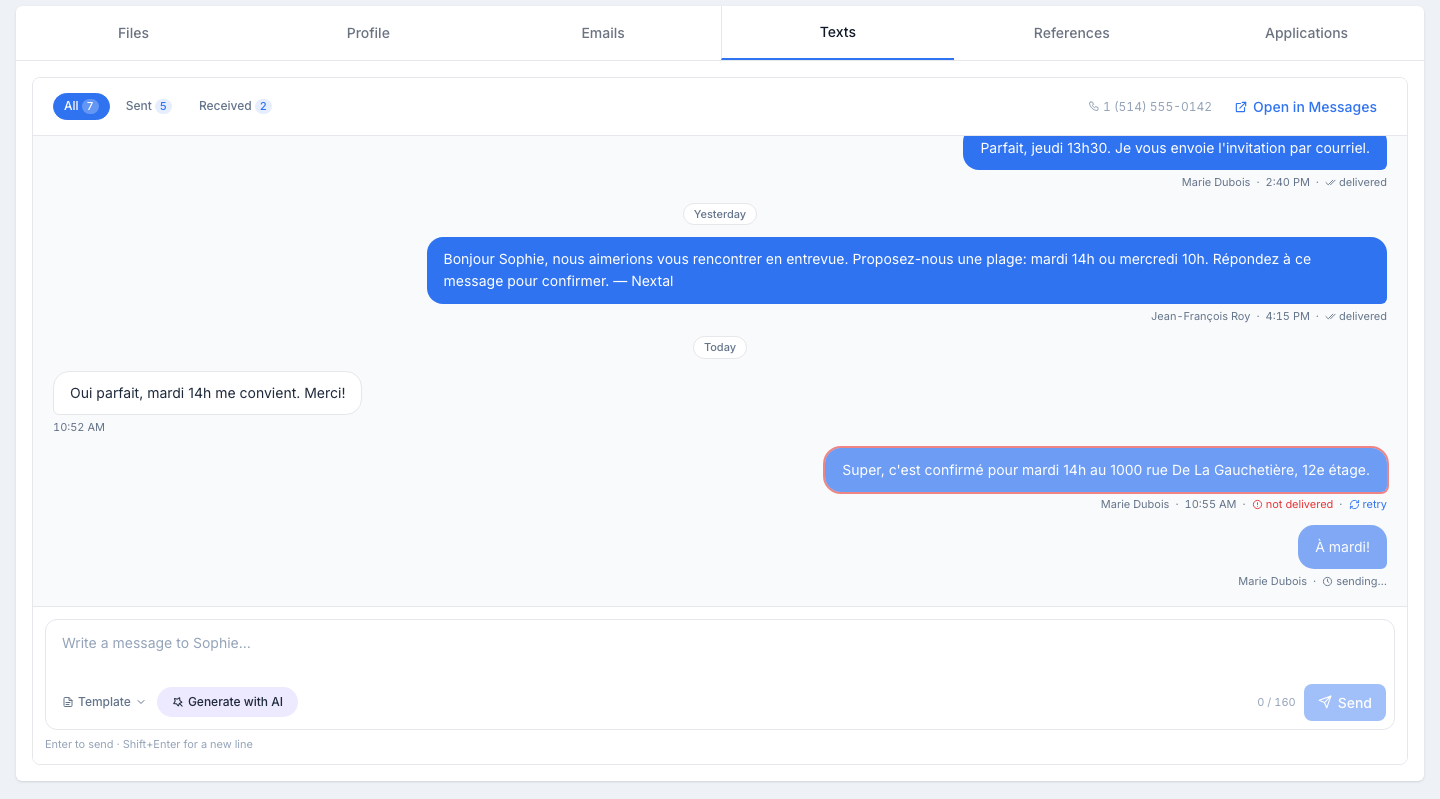
The Texts tab is the SMS conversation with this candidate: everything your team sent them and everything they answered, laid out as a chat thread. Outgoing messages sit on the right, the candidate’s replies on the left, and a composer stays on screen at the bottom of the tab.
Reading the conversation
- Bubbles. Your messages (and your colleagues’) are blue, on the right; under each one, who sent it, the time and its delivery state. The candidate’s replies are white, on the left.
- Day separators. A small Today, Yesterday or date pill splits the days.
- The chips at the top. All, Sent and Received filter the thread, with the number of messages on each side.
- The number and “Open in Messages”. To the right of the chips, the candidate’s phone number and a link that opens the same conversation on the Messages page, next to all the others.
Delivery states
Every outgoing message carries one of these states:
| State | What it means |
|---|---|
| sending… | The message is on its way to the SMS provider. The state updates by itself within seconds. |
| sent | The provider accepted the message. |
| delivered | The candidate’s phone received it. |
| not delivered | The message did not arrive (invalid number, phone unreachable…). The bubble gets a red outline and a retry link sends the same text again as a new message — the failed one stays in the thread. |
Writing a message
-
Type
Write in the box at the bottom of the tab. Enter sends; Shift+Enter adds a line break.
-
Or start from a template
The Template menu lists your organization’s active SMS templates (your custom templates and the system ones). Picking one fills the box; you can still adjust it before sending.
-
Or ask the AI assistant
Generate with AI drafts a message from a prompt, aware of the candidate, the job and the conversation so far. You review, then insert. Once there is text, the bar offers Improve, Change tone, Fix spelling and Shorten.
-
Watch the counter
The counter on the right of the bar (0 / 160) shows the message length and how many SMS segments it will take. A message with characters outside the basic SMS alphabet (for example “ê”, “œ” or an emoji) counts 70 characters per segment instead of 160. Above five segments, sending is refused.
-
Send
The bubble appears right away as sending…, then turns to sent / delivered without a refresh.
No phone number
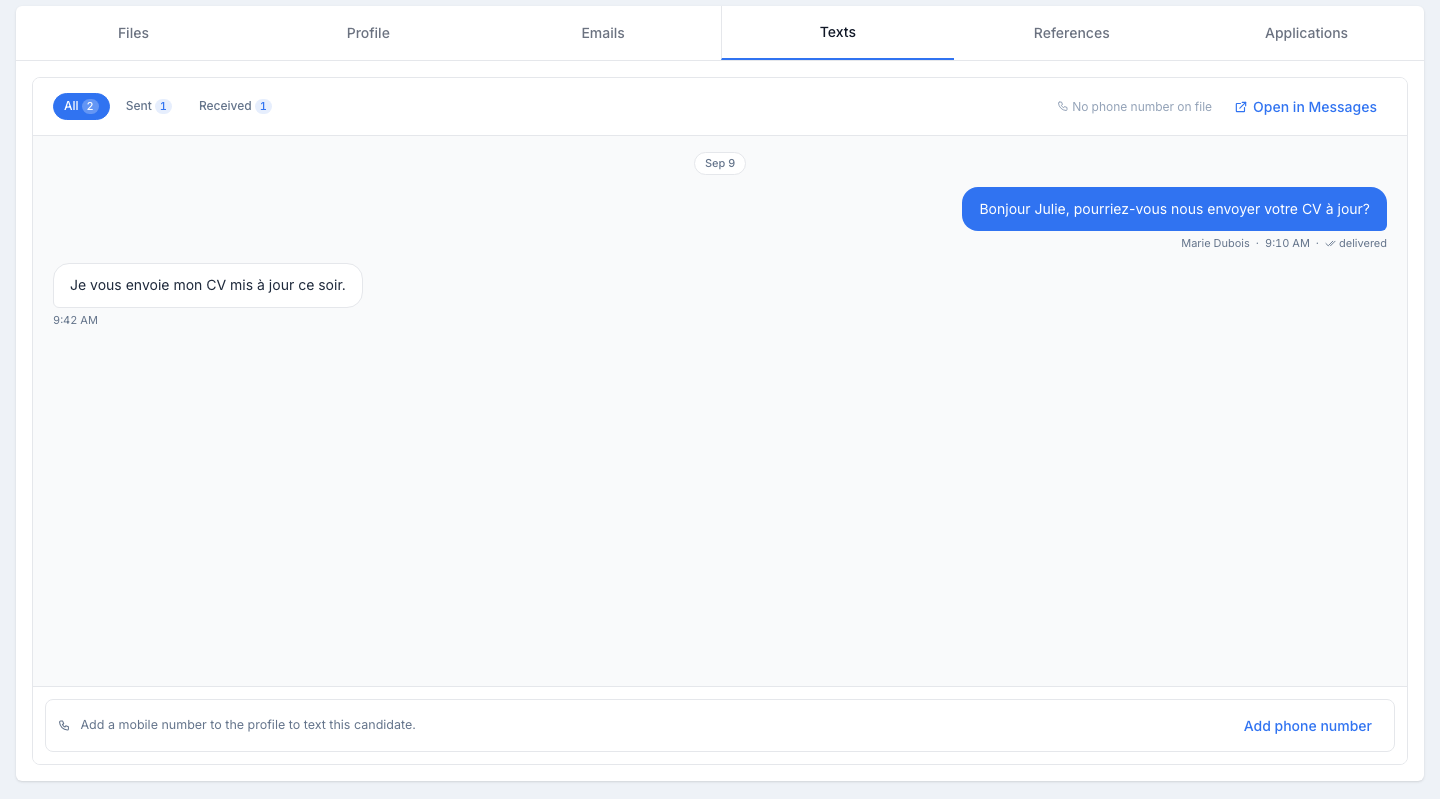
If the candidate’s profile has no phone number, the composer is replaced by No phone number on file and an Add phone number button (edit access required). The number is saved on the profile and the composer appears at once. Any existing history stays visible in the meantime.
The candidate’s replies
Replies land in the thread automatically and, if you turned it on in your notification preferences, trigger an email.
Texting from the Kanban
The Send Text Message button on the Kanban board and on the candidate list still opens its side panel, including for a bulk send. See Send an SMS from the Kanban. The message then shows up on this tab like any other.
Tips
- SMS open rate beats email. Use it for “I just sent you the offer details” follow-ups, interview confirmations, or last-minute schedule changes.
- Keep it short. One 160-character segment costs less and reads at a glance; the counter tells you before you send.
- Never paste a long URL. Use a short link service — long URLs eat your character budget and look spammy.