

Surveys & feedback
Send surveys to the candidate, fill interview surveys internally, remind unanswered surveys and read the answers and scores on the profile.
What it does
Two kinds of surveys share the tab, each flagged with a pill:
- Candidate — a form sent to the candidate (availability, consent, screening questions). They fill it; their answers and score land here. Screening questions answered on the career portal’s application form show up here too.
- Interview — a structured form filled internally after an interview (scores, strengths, concerns). All the feedback on a candidate accumulates on this tab.
The tab is a list on the left and the selected survey read in full on the right. Reference requests have their own tab: Reference requests.
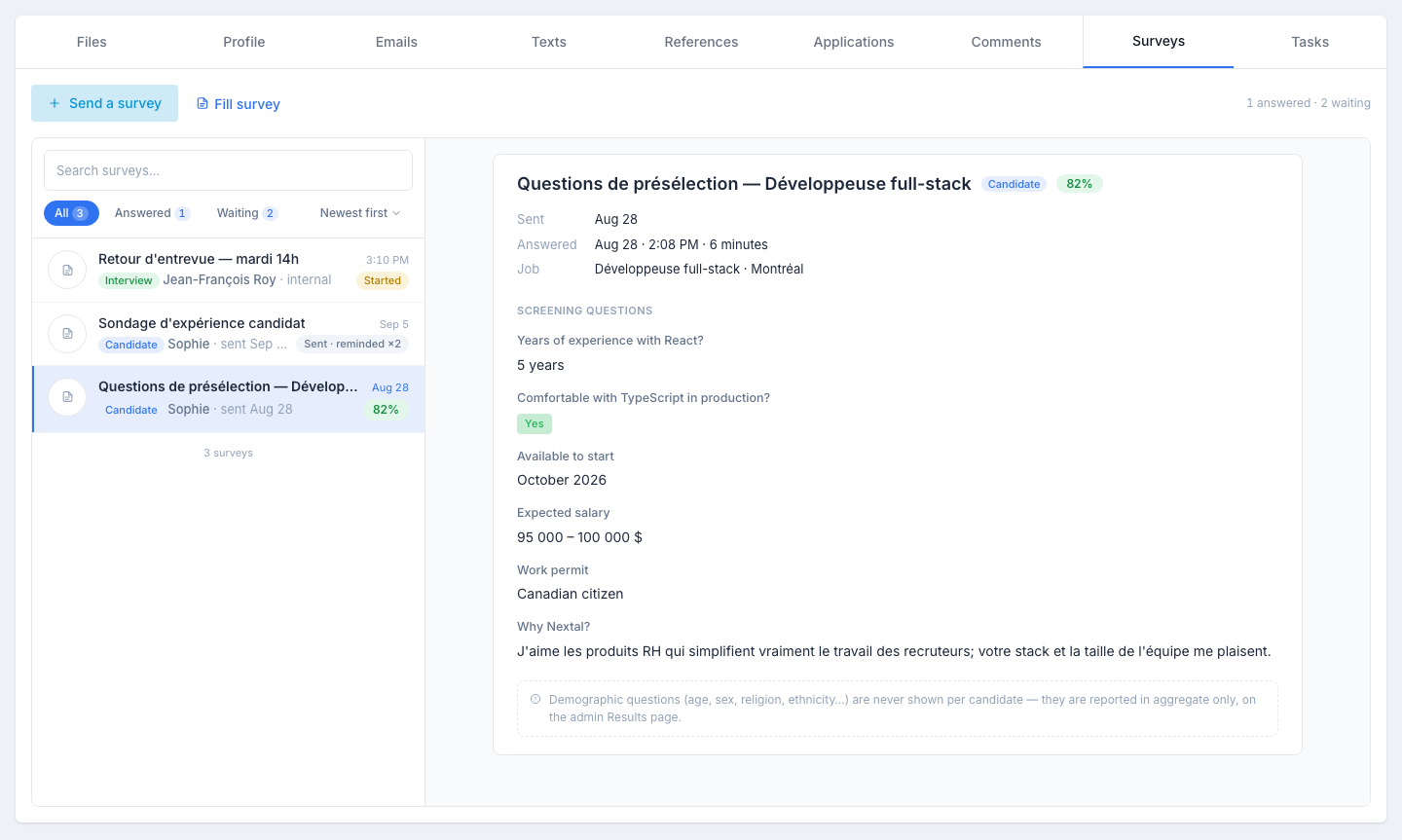
The list
One row per survey: its title, the Candidate or Interview pill, who filled it (the candidate’s first name, or the colleague who filled it internal), who sent it and when, and on the right:
- the score as a percentage, green from 70% up and amber below, when the survey is finished and scored;
- otherwise the status: Sent (with reminded ×n if the candidate was reminded), Started or Answered.
Above it: a search by title or name, the All · Answered · Waiting chips with their counts, and the Newest first / Oldest first sort.
Sending a survey to the candidate
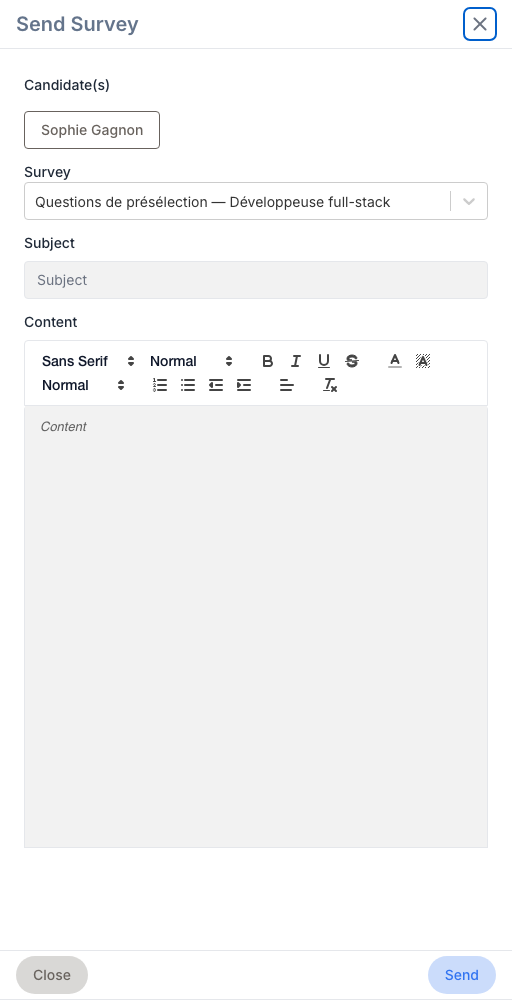
Click Send a survey. Pick a survey template (your admin manages them in Configuration → Survey templates), adjust the email’s subject and content if needed, and send. The candidate gets a unique link to a private form; the survey appears at the top of the list, Sent, until they answer.
Filling a survey internally
Click Fill survey to enter the answers yourself — feedback after an interview, or the answers a candidate gave you verbally. Pick the survey, answer, save: the response is marked internal with your name. The same form opens from the Kanban board — see Fill a survey on behalf of the candidate.
Reading a survey
Click a row. On the right:
- the title, the type pill and the score or status;
- Sent (the date and by whom), Answered (the date, the time and how long the answer took) or Started, the Job concerned for a candidate survey, Filled by and Filled on for an interview survey, and the Reminders;
- the actions: Send reminder on a waiting candidate survey, Continue filling on an interview survey started internally and, when archiving is available in your organization, Save to candidate files;
- Screening questions — each question with its answer: yes/no as badges, ratings as dots, the rest as text; Not answered for what was not filled in. On a Sent survey, a line says the candidate has not opened the survey yet.
Sending a reminder
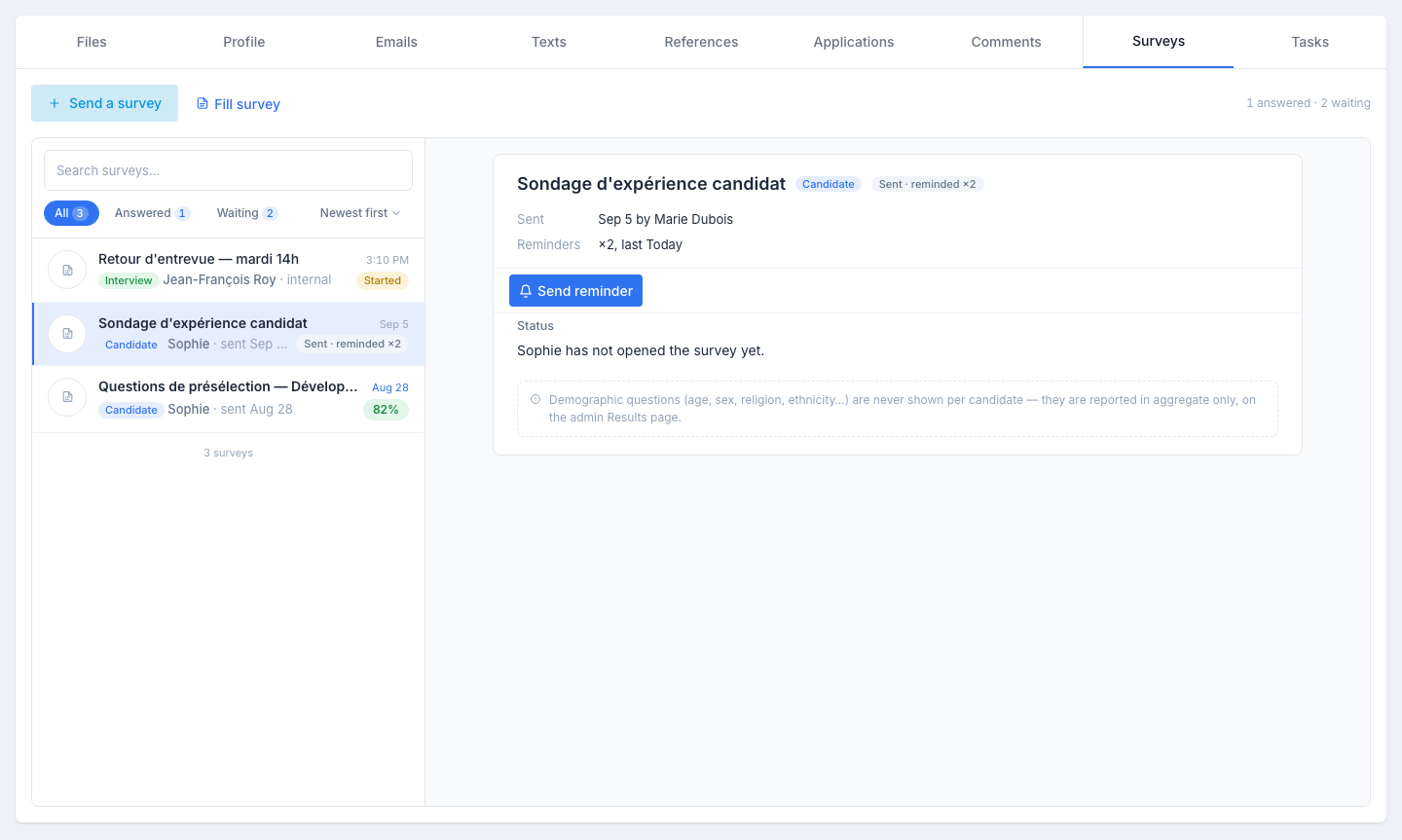
A candidate hasn’t filled in their survey yet? On every candidate survey that is Sent or Started, Send reminder sends them a follow-up email — a distinct message that points at the same link. The reminded ×n counter and the date of the last reminder update.
If you already sent a reminder the same day, the app asks you to confirm (“Already reminded today — send again?”) before sending a second email, so you don’t over-contact the candidate. The button does not appear on Answered surveys nor on surveys filled internally, and it requires edit access on candidates.
Tips
- Standardise interview feedback. Same questions for every interviewer in the same loop. Easier to compare.
- Post-decline survey. A 3-question survey on the way out catches goldmines — “what would have changed your mind?” reveals comp gaps and process issues.
- Keep candidate-facing surveys short. 5 questions max. Anything longer and completion drops.