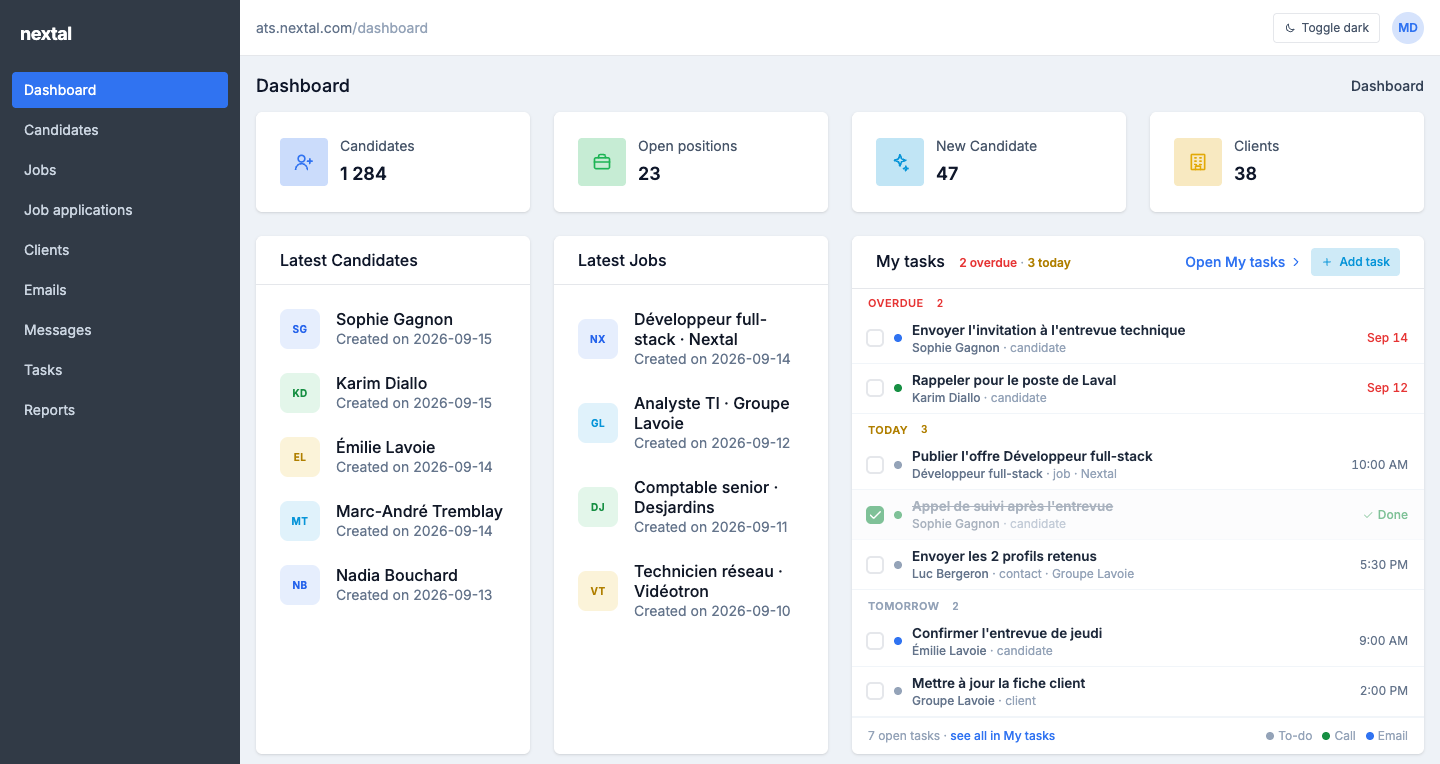
Your landing page after sign-in. Overview stats, latest candidates and jobs, the My tasks card (overdue, today, tomorrow) and your notes.
Features in this section
Home dashboard
Landing page showing data overview stats, the latest candidates and jobs, the My tasks card and user notes.
The My tasks card
The My tasks card replaces the former Daily Tasks and Late Tasks cards.
Under the counters, next to Latest Candidates and Latest Jobs, the My tasks card takes the list of the My tasks app — your open tasks across candidates, contacts, clients and jobs — and keeps only those due by tomorrow, grouped Overdue · Today · Tomorrow, each group with its count. Nothing later: it is the list to go through when you arrive in the morning.
One row per task: a checkbox, a colour dot for the type (grey To-do, green Call, blue Email), the task title, the record it is for (name · candidate, contact, client or job), and the due — the time for today and tomorrow, the date in red for an overdue task.
Tick the box to mark the task completed without leaving the dashboard: the row is struck through, reads Done and leaves a second later; the counters follow. On an error the row comes back and a notification says why.
Click the row (anywhere but the box) to open the task in My tasks, selected, with its record and every action.
Open My tasks, in the header, goes to the full app; Add task opens the New task panel with the record picker (For), as in My tasks. At the bottom, N open tasks · see all in My tasks counts all your open tasks, including those due later.
The header sums up the urgency: 2 overdue · 3 today (the overdue count in red, absent when there is none). With nothing due by tomorrow, the card says so and offers Open My tasks.
Learn more
For a fully documented reference with how-to steps, diagrams and screenshots, see the Candidates section — it’s the prototype for what every section will look like in the next pass.