

Reference requests
Email reference-check requests to contacts, see who has answered, remind the ones who are late and read their answers on the candidate’s profile.
What it does
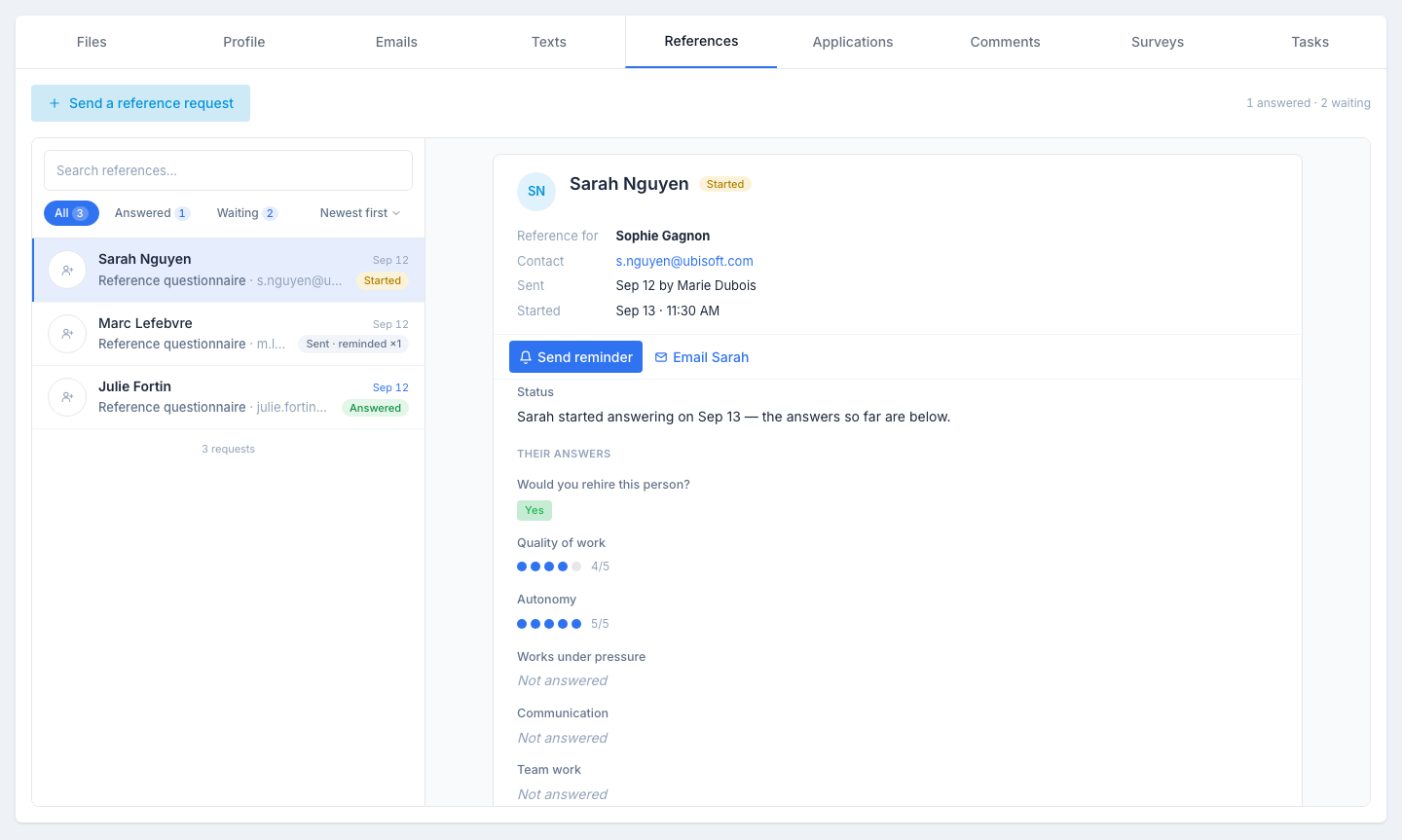
Sends a former manager or colleague of the candidate an email with a secure link. The contact fills in your organization’s reference questionnaire; their answers come back on this tab. The tab is a list of requests on the left and the selected request read in full on the right.
The list
One row per request: the contact’s name, the questionnaire used and the email address, the date sent, and the status:
| Status | What it means |
|---|---|
| Sent | The contact has not opened the questionnaire yet. If they were reminded, the pill reads reminded ×n. |
| Started | The contact has begun answering; the answers received so far are visible. |
| Answered | The questionnaire is complete. |
Above it: a search by name or address, the All · Answered · Waiting chips with their counts, and the Newest first / Oldest first sort. The summary at the top right counts the answered and waiting requests.
Sending a reference request
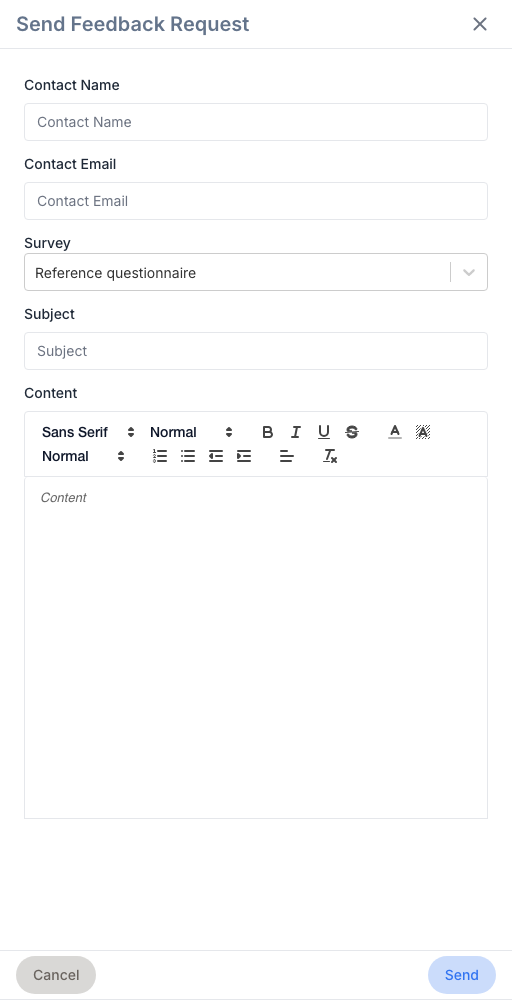
Click Send a reference request. The panel asks for:
- Contact Name and Contact Email — the person who will answer.
- Survey — a survey template of the reference type. Your admin configures these in Configuration → Survey templates.
- The email’s Subject and Content — prefilled, editable.
The email goes out immediately with a link to a private form; the contact does not need to sign in. The request appears at the top of the list, Sent.
Reading a request
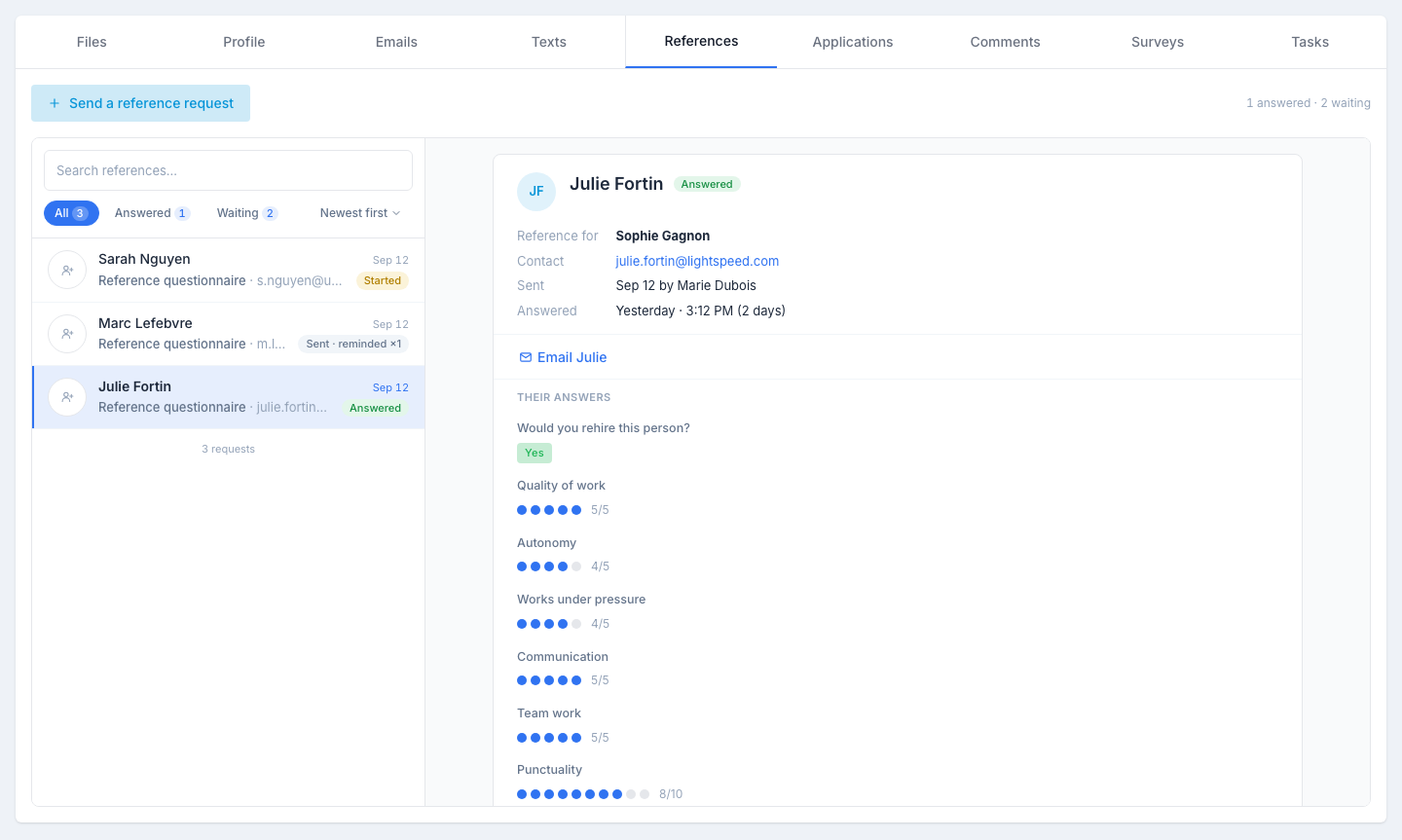
Click a request. On the right:
- the contact and their status, Reference for the candidate, the Contact (clicking the address opens your mail client);
- Sent — the date and who sent it; Started or Answered — the date, the time and, once answered, the delay in days; Reminders — how many and the last one;
- the actions: Send reminder (while the request is waiting), Email <first name> (opens your mail client) and, when archiving is available in your organization, Save to candidate files;
- Their answers — the questionnaire’s questions in order: ratings as dots (4/5), yes/no as badges, written answers as text, and Not answered for what has not been filled in yet. On a Sent request, a status line says the contact has not answered yet and how many questions await them.
Sending a reminder
On a Sent or Started request, Send reminder sends the contact a follow-up email pointing at the same questionnaire. The reminder count and the date of the last one update. If a reminder already went out the same day, the app asks you to confirm before sending a second one. The button does not appear on an Answered request and requires edit access on candidates.
Tips
- Get the candidate to introduce. Ask the candidate to warn their reference (“expect a short questionnaire from Nextal”). Response rates climb noticeably.
- Standardise your questions. One questionnaire per role family (engineering / sales / hourly). Easier to compare one reference with the next.
- Keep it short. 5–8 questions, plain language. References complete short questionnaires; long ones get abandoned.