

Comments
Leave internal notes on a candidate that only your team can see, with @mentions; archive the ones that no longer matter.
What it does
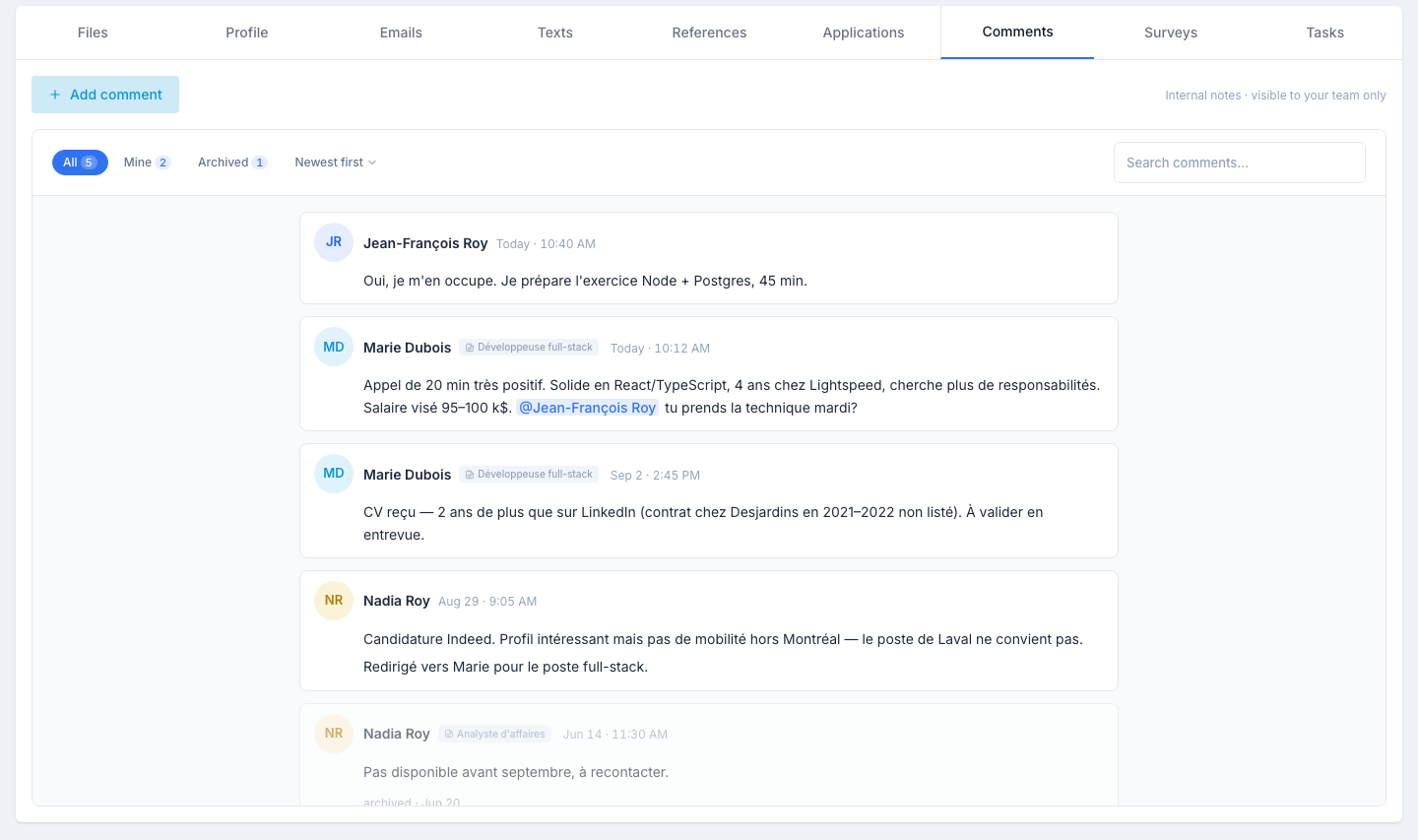
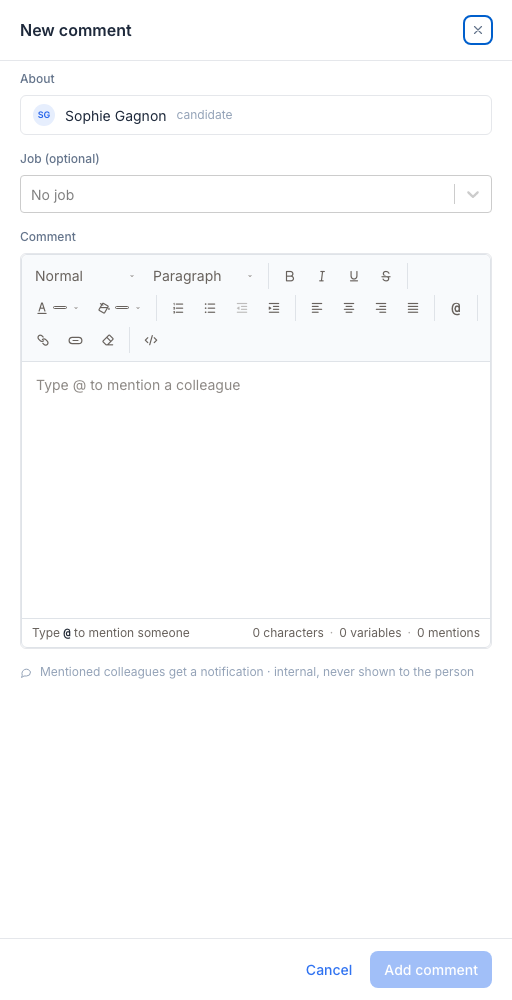
Internal notes on a candidate, visible only to your team. The tab is a feed of notes, newest at the top; each note is written in a side panel, with a rich-text editor and @mentions that notify the person you mention.
Reading the feed
Each note shows its author, the date and time, and its text. When the note is about a specific job, the job title appears next to the author’s name. Mentioned people stand out in blue.
Above the feed:
- the All, Mine (the ones you wrote) and Archived chips, with their counts;
- the Newest first / Oldest first sort;
- a search across the text and the authors.
Adding a comment
-
Click Add comment
The panel opens on the right.
-
Pick a job (optional)
The list offers the jobs the candidate applied to. Handy to tell “interview for job A” from “callback for job B”.
-
Write
Rich-text editor — bold, lists, links. Type
@to mention a colleague. -
Save
The note appears at the top of the feed.
Editing and archiving
Hover one of your notes: the Edit and Archive buttons appear. You cannot edit or archive a colleague’s note.
- Edit reopens the panel. The job chosen at creation cannot be changed.
- Archive takes the note out of the current feed: it moves to the bottom, dimmed, with the mention archived · date, and stays readable under the Archived chip. Restore puts it back. Nothing is deleted.
Mentions and notifications
Type @ in the editor to open the list of your colleagues. Pick a person: on save, they receive an email telling them about the note. Mentions are internal too — the mentioned person sees the note; the candidate never does.
Tips
- Comment after every interaction. A 30-second note after a phone call beats 30 minutes of “what did I tell them?” three weeks later.
- Use comments for context. “Asked for $95k base, would consider $80k + equity” is the kind of nuance that does not fit in a structured field but matters for the offer call.
- Archive rather than let it linger. An outdated note, archived, keeps the history without cluttering the feed.
- Don’t over-mention. Mentioning everyone for every comment becomes noise. Mention only when you need an answer.