

Client emails
The full email history with a client account — a list on the left, the email read on the right — with inline reply to any of the client’s contacts, delivery receipts, and new emails from a template.
What it does
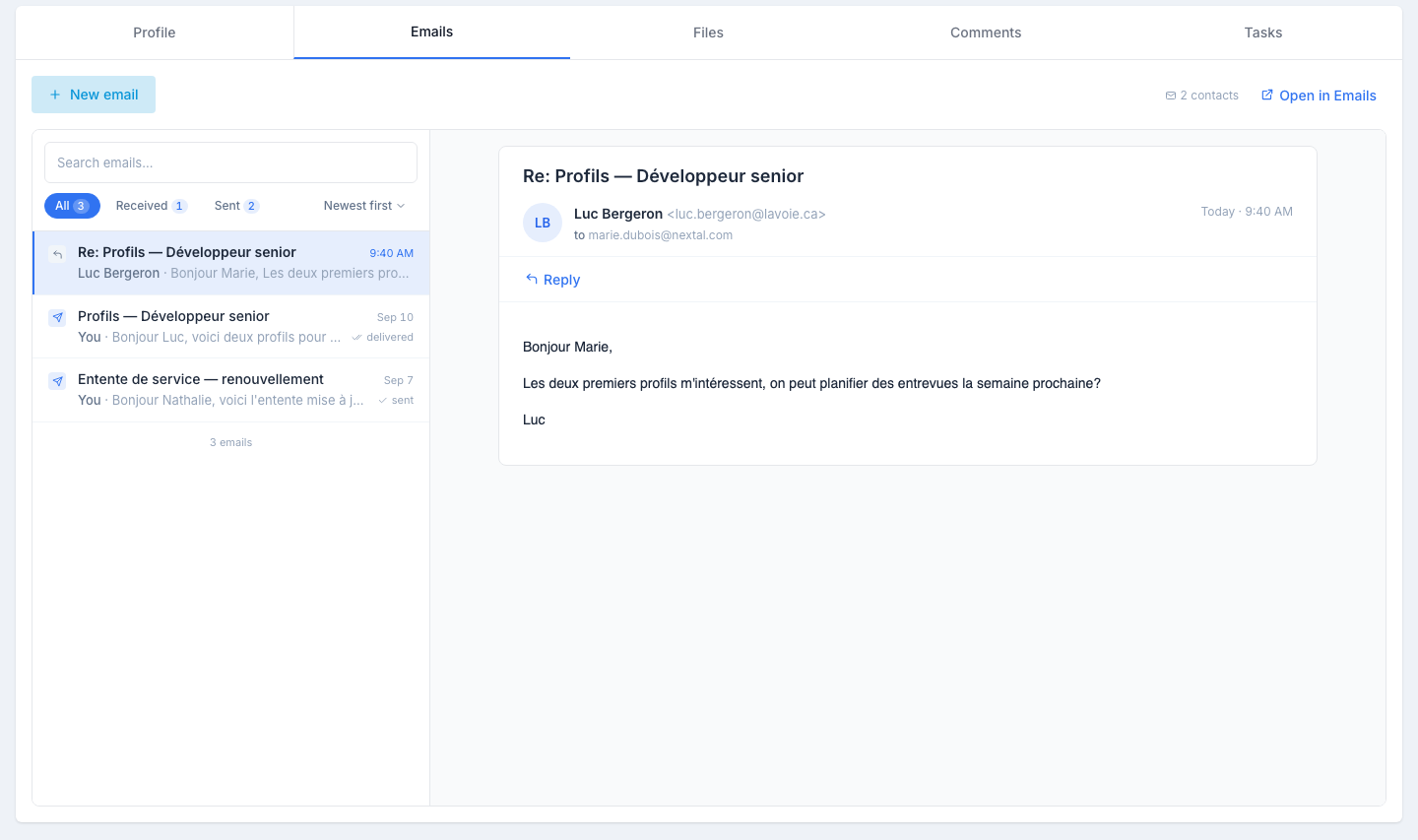
Every email exchanged with this client’s contacts from Nextal — sent by you or a colleague, or received in your synced mailbox — shows up here, whichever contact it went to. The tab works like the candidate’s Emails tab: a list on the left, the selected email read in full on the right.
The list
One row per email, newest first:
- An icon shows the direction — received or sent.
- The subject, then who wrote it (You, the contact’s name or a colleague’s name) and the start of the text.
- The date, and on the right the email’s receipt, or a paperclip when it has an attachment.
Above the list: a search by name, address or subject, the All · Received · Sent chips with their counts, and a Newest first / Oldest first sort.
Receipts
Under every sent email, the state the provider reports:
| State | What it means |
|---|---|
| sent / delivered | The email left and was accepted by the recipient’s mailbox. |
| opened (×n) | The contact opened the email — the number of times is shown. |
| clicked (×n) | The contact clicked a link in the email. |
| not delivered | The email bounced (invalid address, full mailbox…). |
Reading an email
Click a row: the email opens on the right with the subject, sender, recipient, date and its full content, formatted as the contact received it. Attachments are listed under the text; click to open them. When an email quotes the earlier exchanges, they are folded behind Show quoted text.
Replying
Click Reply on the open email. The composer opens right under it, with:
- a contact picker as recipient — preselected to the contact the email was exchanged with; pick another of the client’s contacts if the answer should go to someone else;
- the subject prefixed with Re: and the original email quoted under your cursor, as in a mail client — write above it;
- Template to insert one of your organization’s client templates above the quote;
- the AI assistant — Improve, Change tone, Fix spelling, Subject ideas — to rework what you wrote; it drafts for the contact chosen in the picker;
- Attach to add files;
- Discard to close without sending.
Send stays disabled until you have written something above the quote. Once sent, the reply appears at the top of the list, selected, and its receipts update within seconds.
Sending a new email
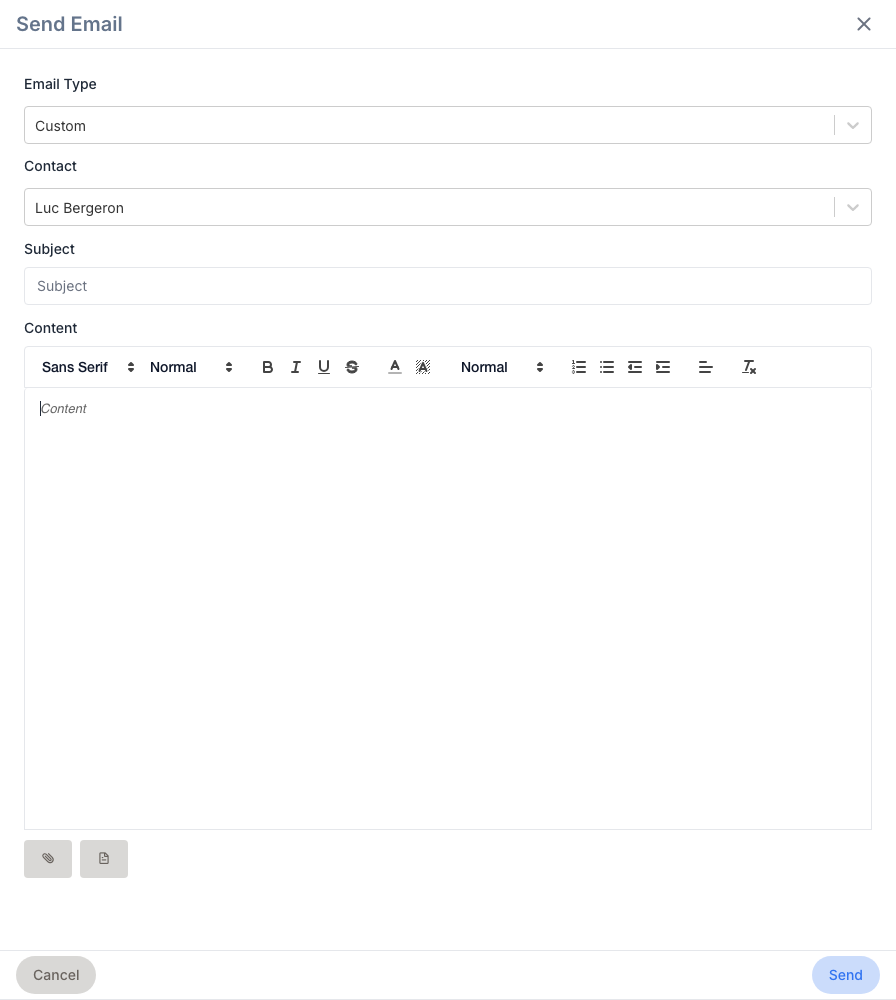
Click New email at the top of the tab. The side panel opens:
- Email type — Custom for a blank canvas, Template to pick one of your organization’s active client templates (subject, content and the template’s attachments fill in), or Transfer candidate to introduce a candidate to the client — you pick the candidate, and the presentation email fills in.
- Contact — which of the client’s contacts receives the email. The first one is preselected. A contact without an email address shows a warning and cannot be written to.
- Subject and Content — rich-text editor: bold, italic, lists, links, images.
- AI assistant — Generate with AI on a blank canvas; Improve, Change tone, Fix spelling and Subject ideas once there is text. It drafts for the selected contact.
- Attachments — upload files or pick a document from the Document Center.
After Send, the panel closes and the new email appears at the top of the list, selected.
No contact to write to
The tab needs a contact with an email address. With no contact on the client, or none with an address, the New email button and the Reply button do not appear and the tab says so — add or complete a contact on the Contacts tab; the Emails tab follows.
Replies and the Emails app
Once your email is synced, every reply from a contact appears in the list automatically. The history is shared with anyone who can see the client. The Open in Emails link, top right, shows the same emails on the Emails page, next to every other conversation; each contact’s own emails are also on their contact profile.
Tips
- Use client templates. A template that uses the client and contact merge variables personalises each send — the quarterly check-in, the profiles-sent note, the renewal reminder.
- Pick the right contact on a reply. The picker defaults to the person you were writing with; switch it when the answer belongs to their colleague.
- Pair emails with comments. When you send something significant — a contract draft, a pricing proposal — drop a quick internal note with the date and what you sent.