

Manage the default résumé download
By default, the Nextal LinkedIn Profile Scraper Chrome extension automatically includes the LinkedIn CV when importing a candidate profile. If you prefer not to download the CV on every import, you can easily disable this option in the extension settings.
This guide explains how to modify the “Include CV by default” setting so that the “Include LinkedIn CV” checkbox is no longer pre-checked when you view profiles.
Step 1: Open the extension settings
From a LinkedIn profile, open the Nextal extension side panel. Then click the gear icon located in the top right of the panel, next to the connection indicator.
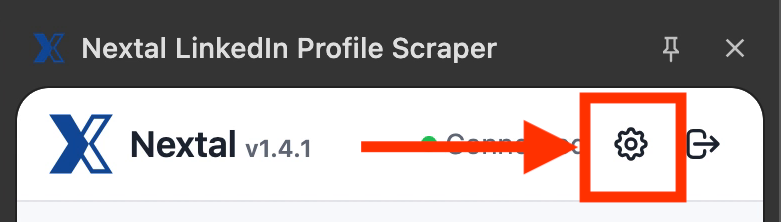
The Nextal Extension Settings page opens in a new tab.
Step 2: Find the “CV Download Settings” section and disable the default download
On the settings page, locate the “CV Download Settings” section, found below the auto-import settings. You will find the “Include CV by default” option, which is enabled by default (checkbox checked in blue).
When this option is enabled, the “Include LinkedIn CV” checkbox is automatically pre-checked each time you view a LinkedIn profile via the extension. The candidate’s CV will then be downloaded and attached to their profile in Nextal.
To stop including the CV automatically, uncheck the “Include CV by default” checkbox by clicking it.
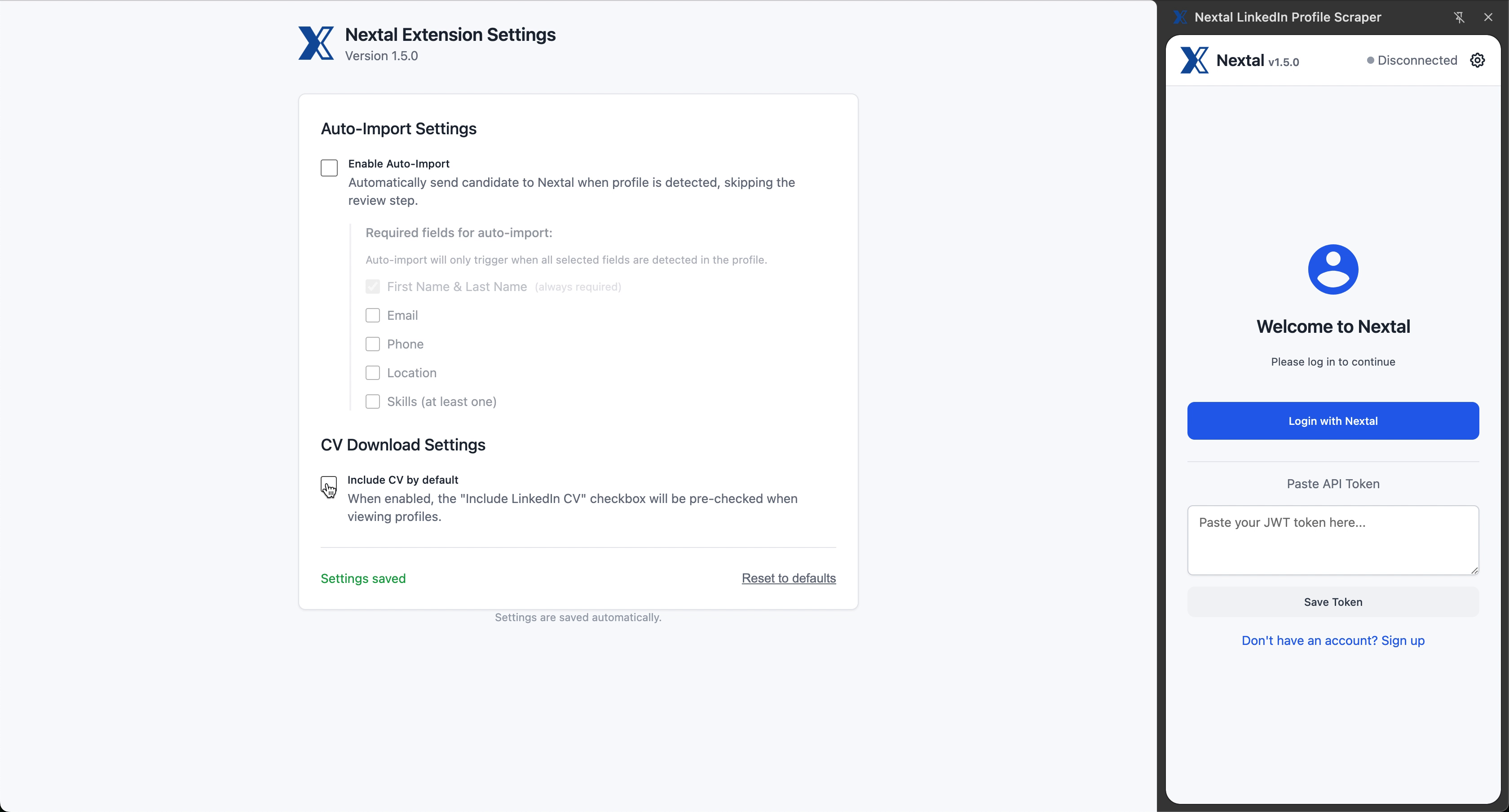
A “Settings saved” message appears in green at the bottom of the page to confirm that your change has been saved. Settings are saved automatically — no additional button to click.
Summary
Once “Include CV by default” is unchecked, the “Include LinkedIn CV” checkbox will no longer be pre-checked when you view a LinkedIn profile. You can still choose to include the CV manually on a case-by-case basis by checking the box during import.