

Emails
The full email history with a candidate — a list on the left, the email read on the right — with inline reply, open and click receipts, and new emails from a template.
What it does
Every email sent to a candidate from Nextal — by you, by a colleague or automatically by the platform — and every reply received in your synced mailbox shows up here. The tab works like the Files tab: a list on the left, the selected item read in full on the right.
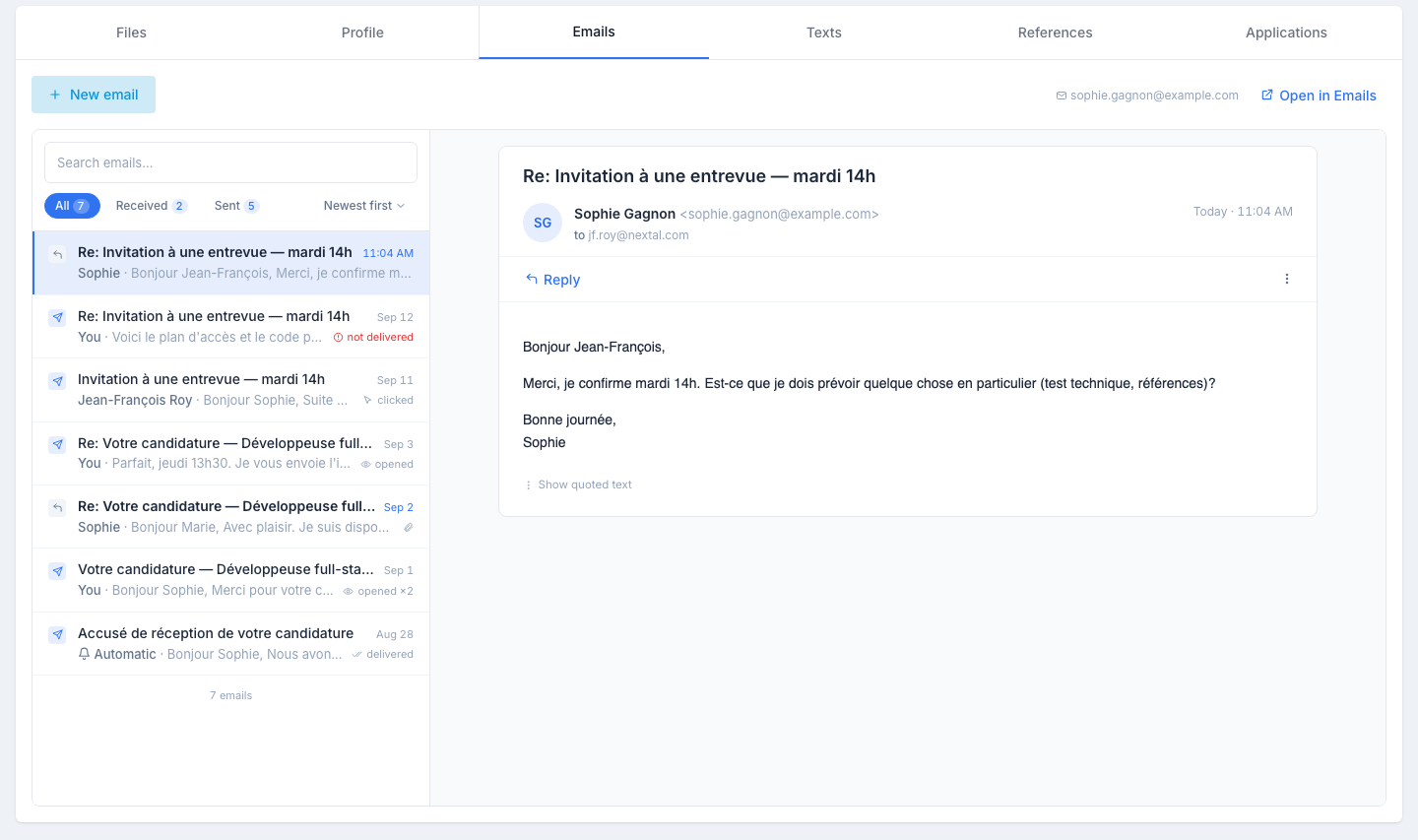
The list
One row per email, newest first:
- An icon shows the direction — received or sent — and an automatic email (application acknowledgement, interview reminder, survey…) is marked with a bell and the word Automatic.
- The subject, then who wrote it (You, the candidate’s first name or a colleague’s name) and the start of the text.
- The date, and on the right the email’s receipt, or a paperclip when it has an attachment.
Above the list: a search by name, address or subject, the All · Received · Sent chips with their counts, and a Newest first / Oldest first sort.
Receipts
Under every sent email, the state the provider reports:
| State | What it means |
|---|---|
| sent / delivered | The email left and was accepted by the recipient’s mailbox. |
| opened (×n) | The candidate opened the email — the number of times is shown. |
| clicked (×n) | The candidate clicked a link in the email. |
| not delivered | The email bounced (invalid address, full mailbox…). |
Reading an email
Click a row: the email opens on the right with the subject, sender, recipient, date and its full content, formatted as the candidate received it. Attachments are listed under the text; click to open them. When an email quotes the earlier exchanges, they are folded behind Show quoted text.
The ⋯ menu offers Delete, with a confirmation.
Replying
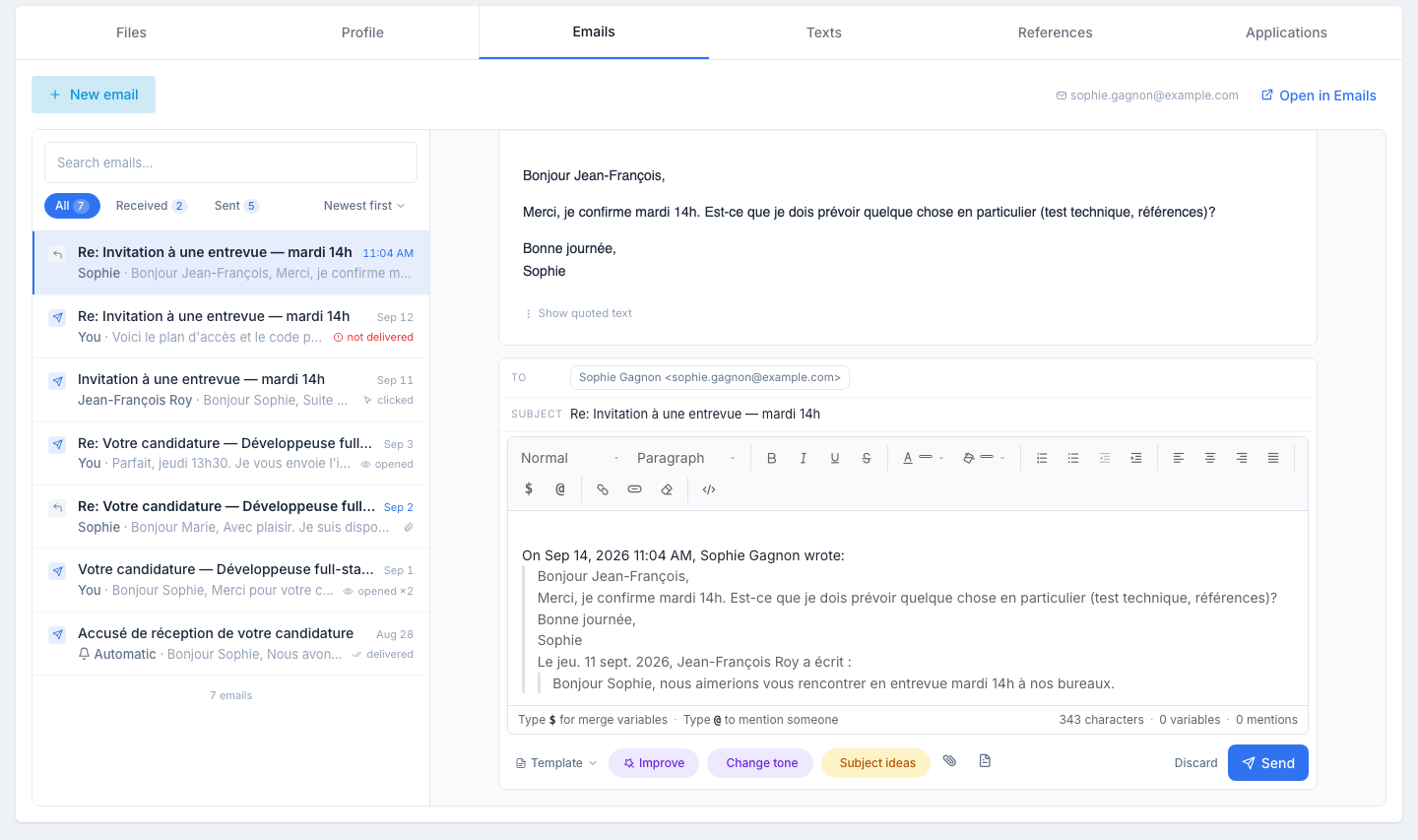
Click Reply on the open email. The composer opens right under it, with:
- the candidate as recipient and the subject prefixed with Re:;
- the original email quoted under your cursor, as in a mail client — write above it;
- Template to insert an email template above the quote;
- the AI assistant — Improve, Change tone, Fix spelling, Subject ideas — to rework what you wrote;
- Attach to add files;
- Discard to close without sending.
Send stays disabled until you have written something above the quote. Once sent, the reply appears at the top of the list, selected, and its receipts update within seconds.
Sending a new email
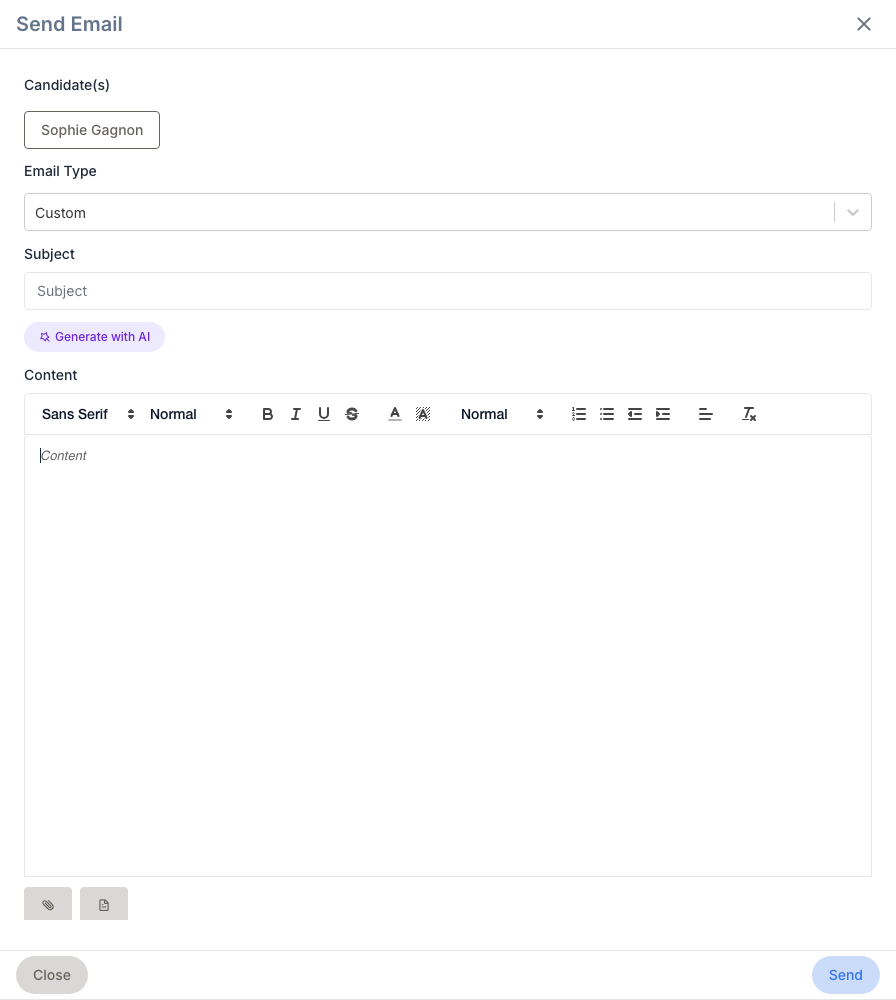
Click New email at the top of the tab. The side panel opens with the candidate already as recipient:
- Email type — Custom for a blank canvas, Template to pick one of your organization’s active templates (subject and content fill in), or Forward job to send the candidate a job opening.
- Subject and Content — rich-text editor: bold, italic, lists, links, images. Type
$in the text to insert a merge variable (candidate first name, job title, your signature…). - AI assistant — Generate with AI on a blank canvas; Improve, Change tone, Fix spelling and Subject ideas once there is text.
- Attachments — upload files or pick a document from the Document Center.
After Send, the panel closes and the new email appears at the top of the list.
No email address
If the candidate’s profile has no email address, the New email button is replaced by No email address on file and the Reply button does not appear. Add the address in the profile header; the tab follows.
The candidate’s replies
Once your email is synced, every reply from the candidate appears in the list automatically — no manual import needed. The history is shared with anyone who can see the candidate, so the next recruiter on the case picks up the whole thread. The Open in Emails link, top right, shows the same emails on the Emails page.
Tips
- Build templates. Once you’ve sent the same “follow-up after no response” email three times, save it as a template — Configuration → Templates.
- Reply rather than start over. The quote keeps the context for the candidate, and the reply lands in the right place in the history.
- Check the receipts before chasing. An email opened ×3 with no answer is not chased the same way as one that was not delivered.